Connect Meta Ads
Sync a Meta ad account's campaigns and spend to compare them with the payers and revenue they bring in.
Connect a Meta (Facebook and Instagram) ad account and Voidhash keeps a read-only copy of its campaigns, creatives and daily spend. It joins that spend with the people each campaign, ad set and ad brought in, so Ads reports show cost per payer and return on ad spend measured on real revenue. Voidhash never changes a campaign, budget or ad at Meta.
Before you start
You need:
- Admin access to the Meta business portfolio that owns the ad account.
- An app owned by that business, of any type. It only issues the token.
- To be an admin or the owner of your Voidhash team.
Add URL parameters to your ads
Voidhash ties a visit to its ad by the ad's ID in the landing page address. Paste these into the URL parameters field of every Meta ad that links to a website:
utm_source=facebook&utm_medium=paid_social&utm_campaign={{campaign.name}}&utm_term={{adset.name}}&utm_content={{ad.name}}&campaign_id={{campaign.id}}&adset_id={{adset.id}}&ad_id={{ad.id}}Ads that already pass {{ad.id}} in utm_id, utm_campaign, utm_term or utm_content, such as
utm_id={{ad.id}}, need no change: Voidhash looks the ID up among your synced ads. A link with only the campaign's or ad set's ID can't
be tied to an ad. The URL parameters tab of Settings → Ad platforms → Meta lists active ads
missing the parameters and the spend that can't be tied to people.
Android app install ads are matched another way; see Install referrer key. Without an ID from either, spend still syncs, but no people are matched to it.
Create a system user token
A system user belongs to your business, not a person, so its token keeps working when people leave and needs no app review.
Add a system user
In Business Settings, open Users → System users and
click Add. Name it, for example Voidhash reporting, and give it the Employee role.
Give it the ad account
Select the system user, choose Assign assets → Ad accounts, select the ad account and turn on View performance. Voidhash needs no other access.
Generate the token
Click Generate new token, choose your business's app, and pick the ads_read permission. Set
the expiration to Never so syncing doesn't stop. Copy the token; Meta shows it once.
Treat the token like a password. Voidhash stores it encrypted and never shows it again.
Connect the account
- In Studio, open Settings → Ad platforms and click Connect next to Meta.
- Paste the token into System user token and click Check token. Voidhash checks that it
grants
ads_readand lists the ad accounts it can read. - Under Choose ad accounts, select the accounts to read and click Connect N ad accounts. Accounts already connected are grayed out.
- The last step shows the URL parameters to add to your ads. Click Done.
Voidhash records each account's name, currency and time zone and imports 90 days of history. A project can connect several ad accounts: once Meta is connected, Settings → Ad platforms → Meta opens its settings, and Add ad account on the Ad accounts tab connects more.
To rotate a token, click Reconnect on the same tab instead; see Account statuses. For developers: the CLI can also connect accounts and import up to 3 years of history.
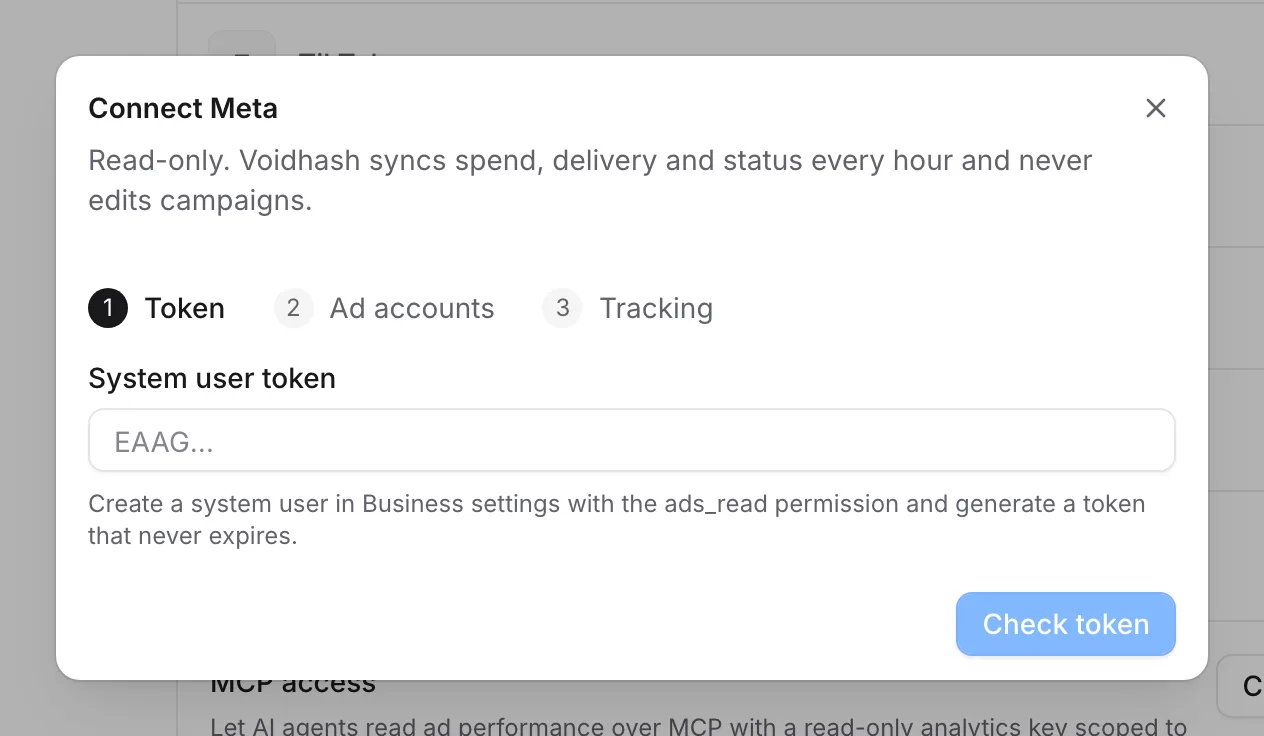 Connecting starts with a system user token from Meta
What Voidhash syncs
Voidhash copies the account's health, campaigns, ad sets, ads, creatives and daily delivery, including spend by platform, placement, country, device, age and gender.
Days are dated in the ad account's time zone and amounts are in its currency. Reports convert them to your reporting currency.
How often:
- Every hour, at the start of the hour: the account, every campaign, ad set and ad, and delivery for today and yesterday.
- Every 6 hours: the last 28 days of delivery and breakdowns again, since Meta keeps revising attributed conversions for up to 28 days.
- After a failure: when Meta is unavailable or limits requests, the sync retries an hour later.
Account statuses
The Ad accounts tab lists each account with its Health and Last sync; hover Last sync for the next one.
| Health | Meaning |
|---|---|
| Syncing | The first sync is running. |
| Healthy | The last sync succeeded. |
| Spend cap N% | The account has used N% of its spending limit, 80% or more. |
| Sync error | The last sync failed; hover for Meta's message. Voidhash retries every hour. |
| Token expired · reconnect | The token was revoked, expired or lost access to the account. Syncing has stopped. |
| Account disabled, Account closed, Unpaid balance, Account under risk review or Account in grace period | Meta's status for the account, which can't deliver ads; hover for Meta's reason when there is one. Fix it in Meta's Business settings. |
To fix a stopped sync or rotate a token, generate a new token, click Reconnect on the Ad accounts tab, paste it and click Check token. The connected accounts are already selected; click Reconnect below them to give them the new token.
Campaign statuses
Each campaign, ad set and ad shows two statuses: Configured, what you set in Ads Manager (on, paused or removed), and Delivery, whether it actually runs, such as delivering, learning, in review, rejected or ended. Anything short of delivering comes with Meta's reason. Change statuses in Ads Manager; every item links there.
Destinations
Each ad is marked by where it sends people: App store, Website, or Web-to-app for website ads whose link is a page that hands people over to your app. Campaigns and ad sets take their ads' destination, or Mixed destinations.
Web-to-app pages are the address prefixes your developers list for the project; see Web to app (developer docs).
Disconnect an account
On the Ad accounts tab, open the account's menu, choose Disconnect and confirm. Syncing stops and the campaigns and spend synced from the account are deleted. People and revenue in Voidhash are not affected, and people already credited to its ads keep that credit. Connecting, reconnecting and disconnecting appear in the audit log, without the token.
If something's off
- After Check token, "ads_read missing" or "This token can't read any ad accounts": the check
passes, but Choose ad accounts shows one of these because the token lacks
ads_read, or the system user wasn't given the ad account. Generate the token again. - Check token fails because Meta rejected the access token: the token is wrong or revoked; generate a new one.
- Spend shows but no people: your ads' links lack the URL parameters, or your website doesn't run the Voidhash SDK. The URL parameters and Tracking tabs show which.
- Token expired · reconnect: generate a new token and click Reconnect.
Next steps
Still stuck? Check Troubleshooting, ask us on Discord, or email support@voidhash.com on a paid plan.
Something wrong or missing on this page? Tell us by email or on Discord.