Find your way around Studio
The project switcher, the sidebar, environments, search and where each kind of setting lives.
Studio is Voidhash's web app, where your team runs paywalls, experiments, analytics and ads for each app. Everything happens inside a project, one app or product, which belongs to your team.
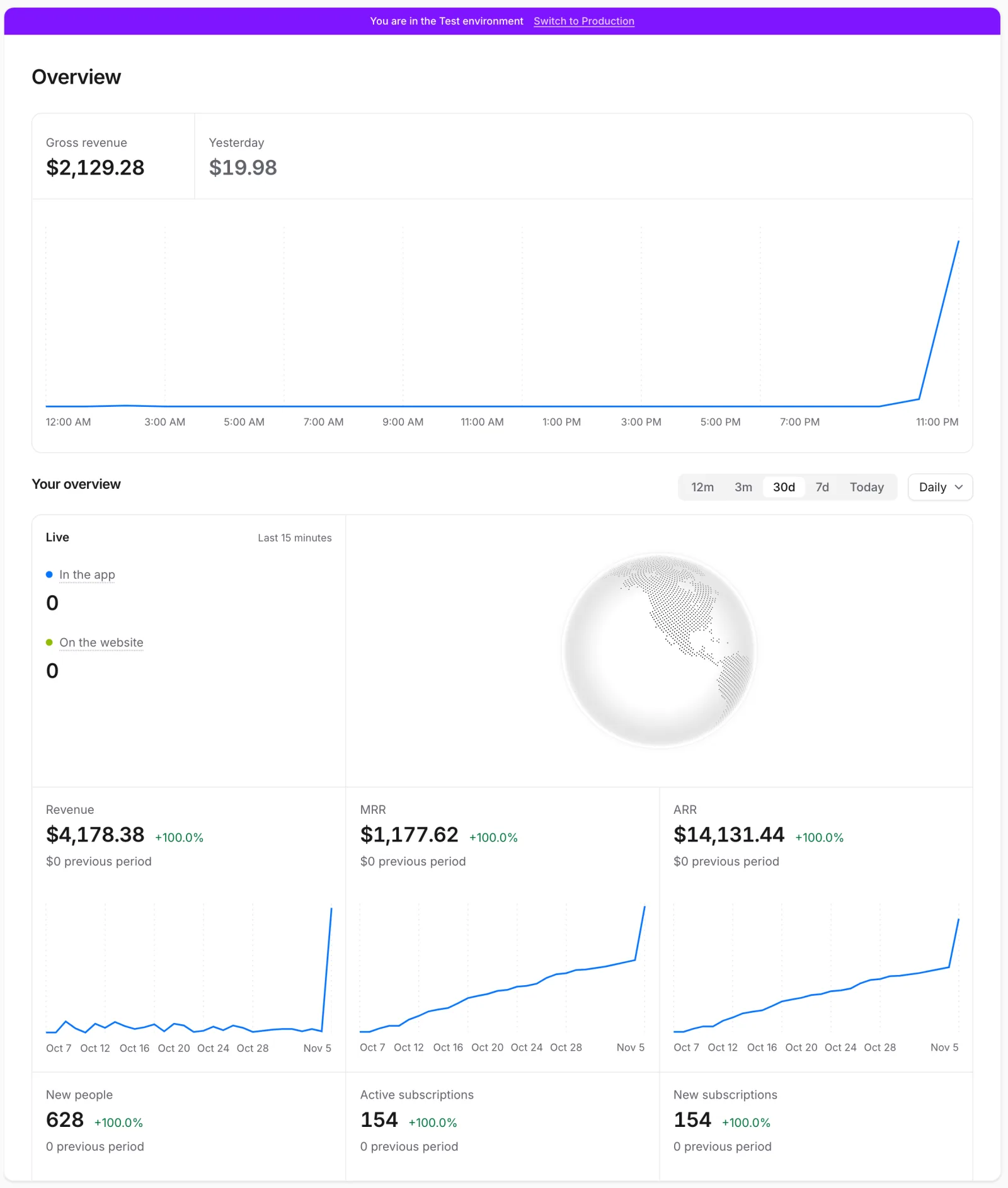 Overview is each project's home page
Switch project or team
The project's name at the top of the sidebar opens the project switcher:
- Pick another project of your team, or choose Add project (admins and the owner). See Manage projects and teams.
- Environment chooses which data you see; see Switch environments.
- Under Team, switch to another team you belong to, or choose Add team to create one.
- Team overview opens your team's numbers in one full-screen view; see Team overview.
Team overview
Team overview adds up all of the team's projects: today's revenue against yesterday's, then cards for revenue, MRR, ARR, new people, subscriptions, ARPU and trials. Pick a period from Today to 12m (30d at first) and Daily, Weekly or Monthly. Everyone in the team can open it, Members included. To see one project alone, use its Overview page.
The sidebar
| Item | What you do there |
|---|---|
| Overview | The project's home: today's revenue, key metrics and who's active right now. |
| Files | Shared folders and task boards, with your Inbox above it. Early access. |
| Bots | AI assistants that answer from your data. Early access. |
| Analytics | Revenue, subscriber, audience and other reports, plus alerts. |
| Ads | What your ad spend brings in. See Ads reports. |
| People | Everyone using your app. See Find and help a person. |
| Products | What people can buy, and the perks it unlocks. See Set up products and perks. |
| Paywalls | Paywalls, components and paywall locations. Early access. |
| A/B testing | Feature flags and A/B tests. Early access. |
| Automations | Messages and actions that run on their own. Early access. |
| Activity | The latest raw events, for checking your data, and sent notifications. |
| Settings | Project, team and personal settings, at the foot of the sidebar. |
Items marked early access appear only once they're turned on for your team. When bots are on, a toggle switches the middle of the sidebar between your bots and the Workspace pages.
Your name sits at the very bottom. Its menu has Settings (your personal settings), Feedback, Help center, which opens this help in a new tab, Theme and Log out. The bell next to it holds your team's notices.
Switch environments
Studio shows one environment at a time. Open the project switcher, choose Environment, and pick one:
| Environment | What it shows |
|---|---|
| Production | Real purchases from your released apps and website. |
| Sandbox | App Store and Google Play test purchases: TestFlight, App Review, Play testers. |
| Test | Simulated purchases from your developers' test builds, and Stripe test mode. |
The environment changes the data on Overview, the Analytics reports from Revenue to Data health, the purchases on a person's profile, and Activity → Analytics events. Insights, dashboards, Query and alerts don't change with it. Studio remembers your choice per project in this browser.
Outside Production, a colored bar at the top says which environment you're in, with Switch to Production. Everything else, such as products, paywalls, flags and settings, is shared by all environments. On those pages the bar turns yellow to warn you that changes affect production too.
Search
Click Search (the magnifier next to the project switcher), or press ⌘K on a Mac or Ctrl K elsewhere. Type to find any page, project or team; Recent lists where you've just been.
Project, team and personal settings
Settings takes over the sidebar with three groups:
| Group | Applies to | Pages |
|---|---|---|
| Project | This project only | General, API keys, Events, Webhooks, Payment providers, Ad platforms, Notifications, MCP servers |
| Team | Every project in the team | General (name, reporting currency, language), Members, Notifications, Security, Billing |
| Personal | You, in every team | Personal settings: your avatar, devices and connected apps |
What each page is for:
- General: the project's name and avatar, Simulated purchases for developers' test builds, its tracking domain and Delete project. See Manage projects and teams.
- API keys: set up by developers. Admins and the owner can check each key's environment and whether it's in use: Used 2 hours ago or Never used. Members see "Only admins and the owner can see API keys." See API keys (developer docs).
- Webhooks: set up by developers; everyone can look, and admins and the owner can change them. Each endpoint shows Active, Disabled or Failed, and its recent deliveries show Pending, In progress, Succeeded, Failed or Exhausted (out of retries). See Webhook delivery (developer docs).
- Payment providers: connect the App Store, Google Play and Stripe; payment sources are set up by developers. A connected one shows Enabled; one with Set up isn't connected yet. Members see "Only admins and the owner can see payment providers." See Payment providers.
- Events: which built-in events the project keeps; see Check your data.
- Ad platforms: connect Meta Ads.
- Notifications: push notification services, when push is on.
- MCP servers: tools for bots, when bots are on.
Team Notifications is different: it's where you choose which notices you get. Security shows to admins and the owner, and Billing only on Voidhash Cloud. The picker at the top switches which project's settings you see.
If something's off
- A sidebar item is missing: it's in early access and not on for your team yet, or exists only on Voidhash Cloud. Roles hide only Security in Settings. See A button or page is missing.
- The numbers look empty: check the environment. A colored bar at the top means you're not on Production.
- You can't find a setting: project settings apply to one project; switch project with the picker at the top of Settings.
Next steps
Still stuck? Check Troubleshooting, ask us on Discord, or email support@voidhash.com on a paid plan.
Something wrong or missing on this page? Tell us by email or on Discord.