Find and help a person
Look someone up in People, see their purchases and perks, pin a flag for them, and delete their data.
People lists everyone who uses your app or website, whether they've bought anything or not. Use it to answer a support request: find the person, check what they bought and what it unlocks, and act on it.
Find a person
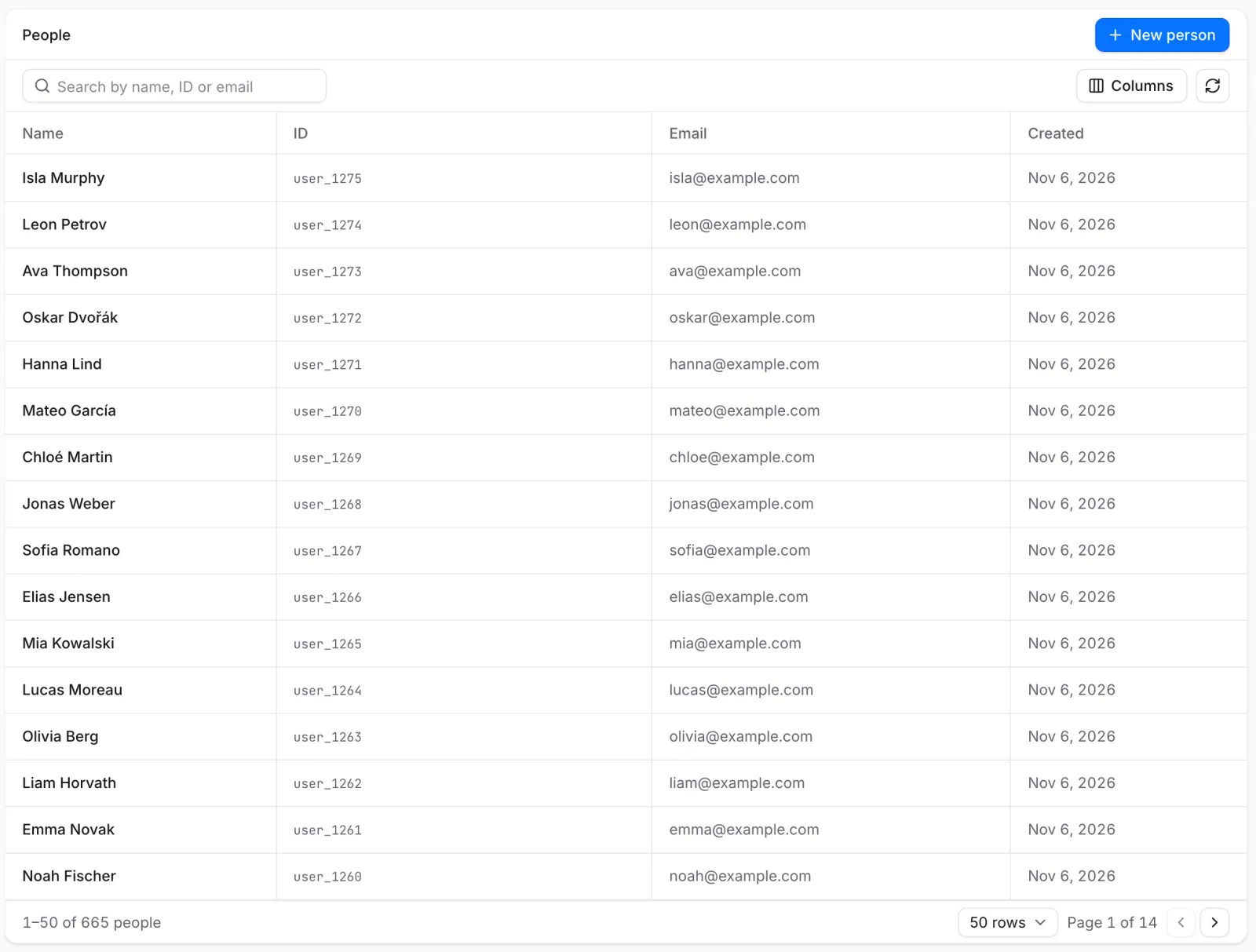 Search by name, ID or email to find a person
- Open People in the sidebar.
- Type in Search by name, ID or email. Part of a name or email works, and so does any ID the person has had, such as the user ID your app signs them in with.
- Select the person to open their profile.
The list shows Name, ID, Email and Created. Columns hides the ones you don't need. People without a name show as Unnamed.
New person creates a person by hand with a Distinct ID, Name and Email, which helps when testing purchases. Members see New person too, but clicking Create person ends in "Failed to create person"; ask an admin. See Roles.
Read a profile
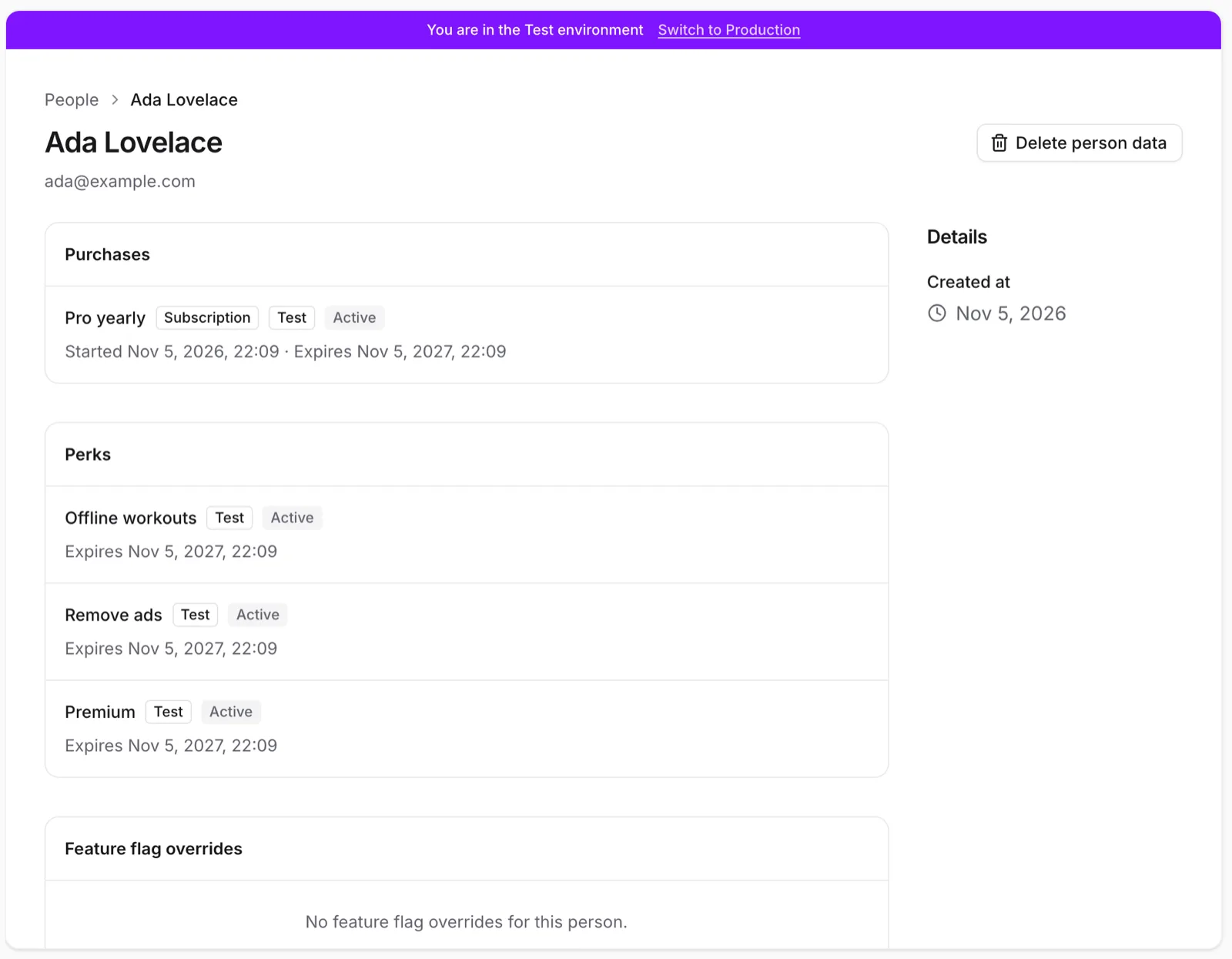 A profile shows what the person bought and can use
A profile shows:
-
Purchases: subscriptions and one-time purchases, each with its environment and state:
State Meaning Access Active The subscription renews as planned. Yes Cancels at period end The person turned off renewal. Until the paid period ends Grace period A renewal payment failed and the store gives extra time to pay. Yes, until the grace period ends Canceled The store ended the subscription before its paid period was over. No, it ends at once Expired The subscription ended. No Purchased A one-time purchase. Yes Refunded or Revoked A one-time purchase was refunded or taken back. No -
Perks: what the person can use now, and expired perks with when they ended.
-
Feature flag overrides: flags pinned for this person, when feature flags are on for your team.
-
Details: Created at, when the person first appeared.
Purchases follow the environment selected in the project switcher. If a tester's purchase is missing, switch to Sandbox or Test; see Switch environments.
The profile doesn't list events. To see what someone did, open Activity → Analytics events; see Check your data.
For a purchase from a payment source, such as your own billing system, the profile also has Cancel on an active subscription (choose Cancel at period end or Cancel now, then confirm) and Refund on a one-time purchase (click it, then confirm). Members see both, but only an admin or the owner can use them. Access changes once the source confirms. App Store, Google Play and Stripe purchases are refunded and canceled in the store; see Refunds and cancellations.
Why someone has or lacks access
A person has a perk only through a purchase: Studio can't grant or remove a perk by hand. When someone says they paid but can't use your app, check these in order:
- Is the purchase on their profile? If not, they may be signed in under another account than the one that paid, or they bought before signing in. Search by their email and other IDs.
- Is it in the right environment? Test purchases never unlock your released app. Sandbox purchases, such as TestFlight, do unless your developers turned that off.
- Is it still active? A Canceled, Expired, Refunded or Revoked purchase grants nothing.
- Does the product grant the perk? Open the product in Products and check its Perks.
- Is the store product linked? A purchase of an unlinked store product grants nothing until it's linked. See Set up products and perks.
With bots on, you can ask Void, for example "Why doesn't user_123 have premium?". Developers can get the same explanation from the CLI (developer docs).
To give someone access as a goodwill gesture, ask a developer to record a purchase for them through a payment source.
Pin a feature flag for someone
On the profile, under Feature flag overrides:
- Pick the Flag. The list offers flags this person has no override for yet.
- Switch Force enabled on or off, and add a Note (optional) saying why.
- Click Add override.
The flag shows as Forced ON or Forced OFF. Remove override returns the person to the flag's normal rules. See Feature flags.
Pinning a flag needs an admin or the owner. For Members, Add override and Remove override do nothing.
Delete a person's data
When someone asks to be forgotten, click Delete person data on their profile, then Delete person data in the dialog. It permanently deletes their name, email, details, IDs, devices and event history, including profiles merged into theirs. Purchases and revenue stay recorded without personal data, so your reports don't change.
Deleting a person's data can't be undone. Only admins and the owner see the button.
Deleting can take a moment; Studio shows Deleting person data… until it's done, then returns to People. Developers can also delete data from your backend; see Delete personal data (developer docs).
If something's off
- Search finds nobody: try their email, another ID they used, or part of their name. People who never opened the app or website aren't in Studio.
- No Delete person data button: only admins and the owner can delete data.
- A purchase is missing: switch the environment, or check they paid with this account. See Why someone has or lacks access.
Next steps
Still stuck? Check Troubleshooting, ask us on Discord, or email support@voidhash.com on a paid plan.
Something wrong or missing on this page? Tell us by email or on Discord.