Push notifications
Connect Apple's and Google's push services, send pushes from automations and check whether they arrived.
Push notifications are messages that appear on the phones of the people using your app. In Studio you connect the push services once, send pushes from automations, and follow every send under Activity → Sent notifications.
Push notifications are in early access. Ask us on Discord, or email support@voidhash.com on a paid plan, to turn them on for your team.
Pushes to your app's users are different from notices, which Voidhash sends to your team.
Before you start
A push reaches only devices your app has registered for it, and your developers add that to the app. They also hold the credentials from Apple and Google. See Push notifications (developer docs).
Connect a push service
Open Settings → Notifications. Under Providers there are two services:
| Service | Delivers to |
|---|---|
| Apple Push Notification service | iPhones and iPads. Needs a Team ID, Key ID, Bundle ID and Private key (.p8), the .p8 key file from your Apple developer account. |
| Firebase Cloud Messaging | Android devices. Needs a Firebase project ID and a Service account JSON from Firebase. |
- Click Set up next to the service. Its setup page opens.
- Fill in the credentials, usually with a developer, and click Save.
- Turn on Enabled. The service shows Enabled in the list.
Apple's setup also has an Environment: Production (the default) or Sandbox. Keep Production for apps from the App Store and TestFlight. Sandbox reaches only builds a developer installs straight from Xcode, so switch to it only while they test such a build.
Saved keys are never shown again. To stop sending through a service without losing its setup, turn Enabled off. Changing push settings needs an admin or the owner; Members see Set up, but it ends in "Failed to save … configuration".
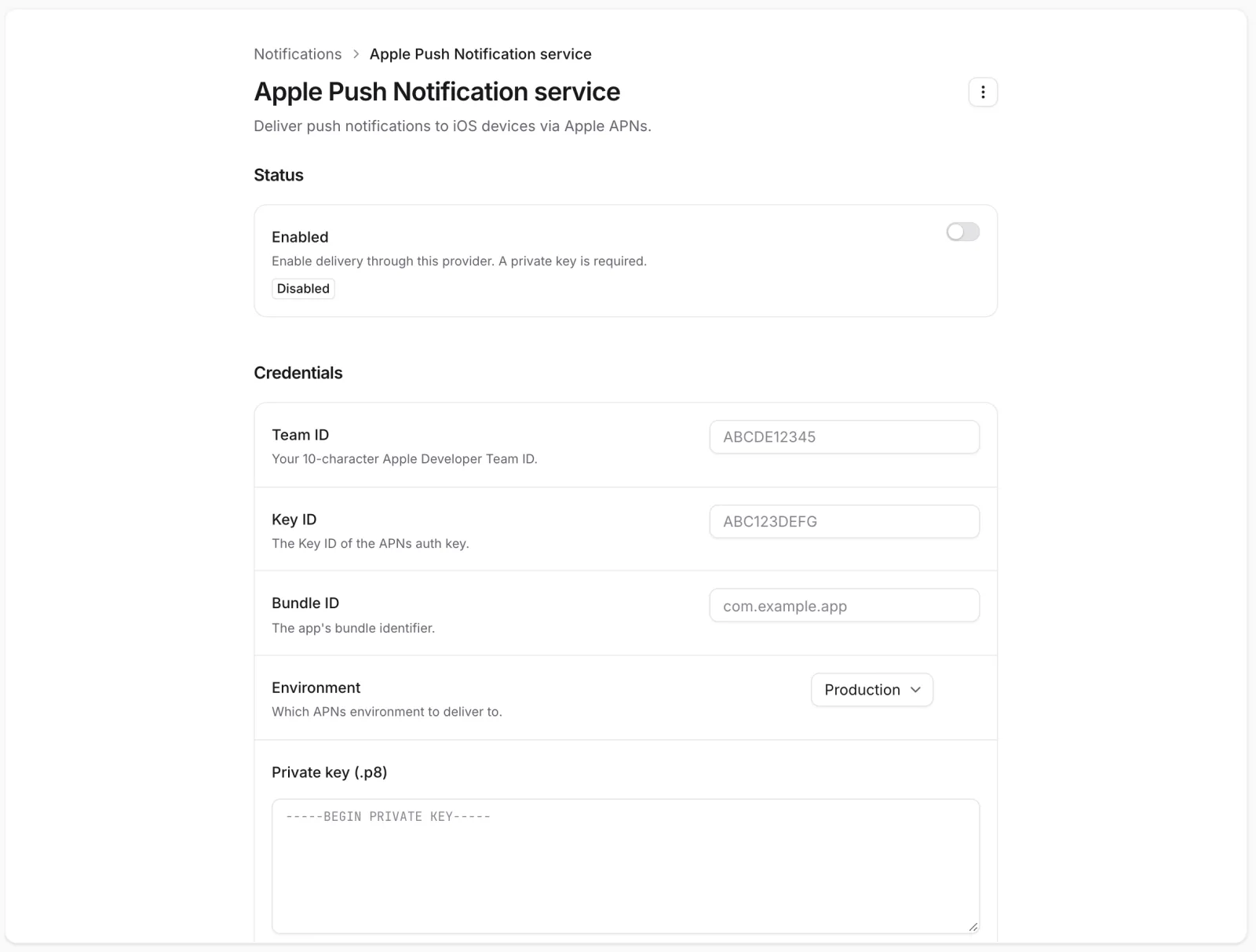 Turn on Enabled once the Apple credentials are saved
Send a push
Studio has no screen for a one-off push. Build an automation with a Send push notification step: for example, a welcome message when someone signs up, or a reminder the day before a trial ends. Developers and AI agents can also send pushes from your backend, the CLI or the MCP server.
Check what was sent
Activity → Sent notifications lists every send, newest first, with its Status and how many devices it was Delivered to, Failed on, and targeted in total. Click a send for the Message and each device's delivery.
| Status | Meaning |
|---|---|
| pending, in progress | Being delivered. |
| succeeded | Every device accepted it. |
| partial failed | Some devices accepted it and some didn't. |
| failed | No device accepted it. |
| no recipients | The people have no device registered for an enabled service. |
A succeeded send means Apple or Google accepted the push, not that the person saw it. A device that fails for a temporary reason is tried up to 5 times in all. Opens and revenue after a push are on Analytics → Push.
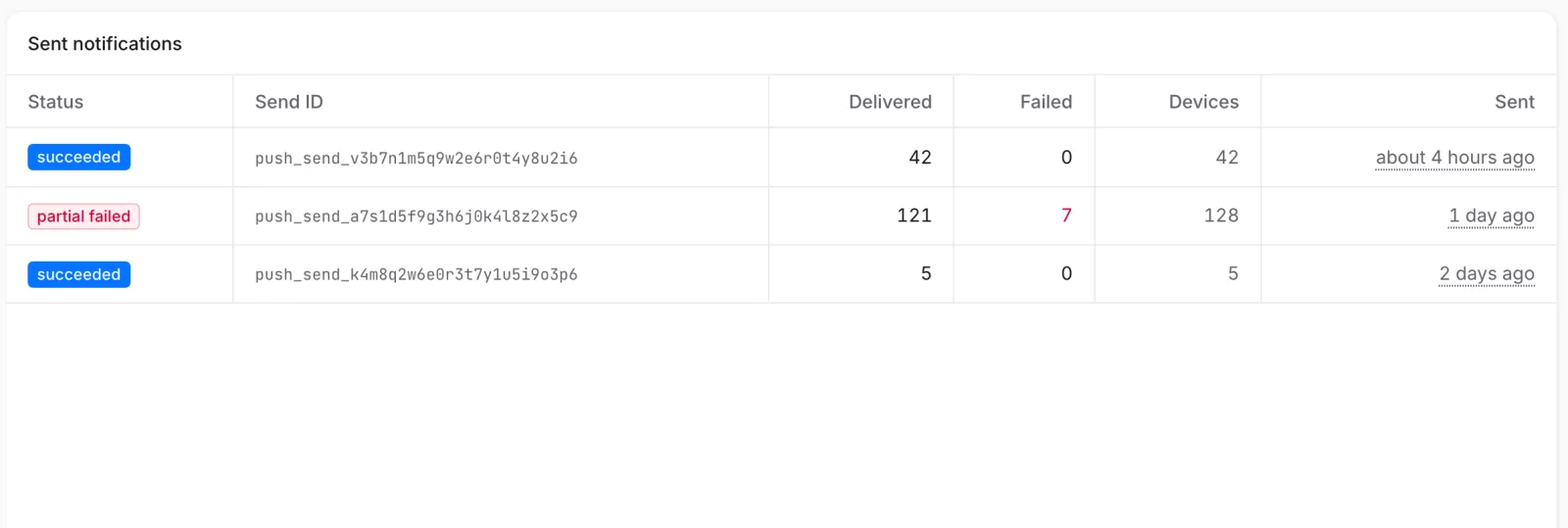 Status and Delivered show how far each send got
If something's off
- No Notifications among the project's settings: push notifications are in early access and not on for your team. Settings → Team → Notifications is a different page, for your team's notices.
- A send shows no recipients: the app never registered a device for those people, for example because they didn't allow notifications, or the service for their platform isn't Enabled.
- Delivered but the person saw nothing: their phone may hide notifications from your app, or be in a focus mode. Voidhash can't see that.
- Every send fails: the credentials are wrong or expired. Ask a developer to check them.
See also Troubleshooting.
Next steps
- Automations
- Push reports
- Push notifications (developer docs)
Still stuck? Check Troubleshooting, ask us on Discord, or email support@voidhash.com on a paid plan.
Something wrong or missing on this page? Tell us by email or on Discord.