Manage projects and teams
Create, rename and delete projects, set up a tracking domain, and rename or delete your team.
A team is your company's account; a project is one app or product inside it, with its own data, paywalls and settings. Admins and the owner can create, rename and delete projects; only the owner can delete the team.
Create a project
- Open the project switcher at the top of the sidebar and choose Add project.
- Enter a Name of up to 32 characters, such as your app's name, and pick its platforms.
- Click Create project. Studio opens the new project.
Give each app its own project. Your developers then connect it with its own keys; see Projects and environments (developer docs).
Rename a project
Open Settings → General in the project. Under Project, change the Project name and click Save. The Project avatar above it changes the picture shown in the switcher; click the avatar to upload one.
Tracking domain
A tracking domain sends your website's analytics through an address on your own site, such as
t.example.com, so fewer visits are lost to ad blockers and visitor locations are accurate. It's
on Settings → General under Tracking domain, on Voidhash Cloud. Admins and the owner
can add or remove one.
- Enter the Hostname, a subdomain of the site that runs Voidhash, and click Add domain.
- Whoever manages your domain's DNS adds the records Studio lists. The domain shows Waiting for DNS, then Issuing certificate, then Active. Check now checks again.
- Once it's Active, a developer points the website's Voidhash setup at it.
A domain that isn't set up within 7 days is removed. Remove stops it; ask your developers to switch the website back first, or its events are lost.
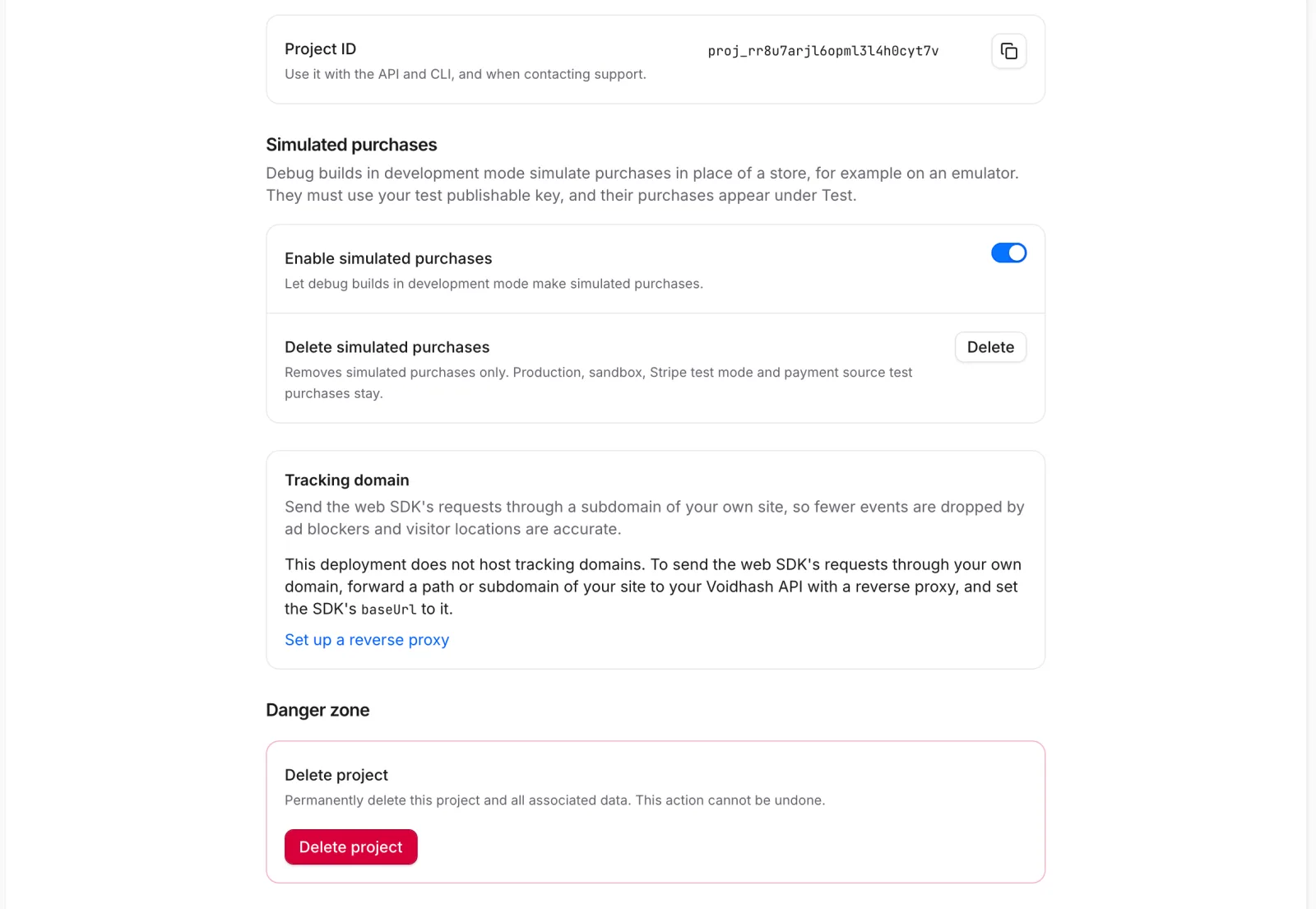 Tracking domain and Delete project live in project settings
Delete a project
Deleting a project permanently deletes all its data: people, purchase history, paywalls, reports and settings. It can't be undone.
- Open Settings → General and, under Danger zone, click Delete project.
- Type the text Studio shows to confirm, and click Delete project.
Team settings
Settings → Team → General holds the Team name, the Team avatar, the Reporting currency and, when bots are on, the bots' Preferred language. To see all projects' numbers added together, choose Team overview in the project switcher.
Delete the team
Only the owner can delete a team; for everyone else the button is grayed out.
- Open Settings → Team → General and, under Danger zone, click Delete team.
- Type the text Studio shows, your team's short name from its web address, to confirm, and click Delete team.
This permanently deletes the team, every project in it and all their data. It can't be undone.
If something's off
- No Add project in the switcher: only admins and the owner can create projects.
- The project name field is grayed out: your role can view settings but not change them.
- The tracking domain stays on Waiting for DNS, or reads Failed: the DNS records aren't in place yet, or are hidden by your DNS provider's proxy. Check them with whoever manages your domain, then click Check now.
Next steps
Still stuck? Check Troubleshooting, ask us on Discord, or email support@voidhash.com on a paid plan.
Something wrong or missing on this page? Tell us by email or on Discord.