Bots
Chat with built-in bots that read your project's data, work on boards and act after you approve.
A bot is an AI assistant inside Studio that answers from your project's data and acts through the same tools as AI agents connected through the MCP server. Bots work in Files and boards like team members and change their own routines and instructions without asking. Changes to your Voidhash data, and tools of MCP servers that aren't read-only, wait for a person to approve; see Approvals.
Bots are in early access. Ask us on Discord, or email support@voidhash.com on a paid plan, to turn them on for your team.
Built-in bots
| Bot | Kind | What it does |
|---|---|---|
| Void | Personal | Your own assistant. Reads what you can read, works in Files as you, asks you before changing Voidhash data, and talks to the project's other bots for you. |
| Ad Manager | Project | Monitors and manages the project's ads. Reads ad accounts, campaigns and the analytics they're measured against, and manages ad accounts once someone allowed to approves each change. |
A personal bot is a private conversation between you and the bot. A project bot has one group conversation that everyone in the project shares.
In the sidebar, switch from Workspace to Bots to list them. Void is always first, marked (Yours). To add a project bot, click New bot, then Add next to it; its chat opens. To remove one, click its name at the top of its chat, then Remove from project; its folder in Files becomes an ordinary folder. Adding and removing need an admin or the owner; Members see Add grayed out.
Ad Manager
Ad Manager works with the ad accounts you connect. On its first start it sets up an Ads board in its folder, writes a first look at the account, and creates four routines in the ad account's time zone. If no ad account is connected yet, it asks which time zone to use:
| Routine | When |
|---|---|
| Morning check | Daily at 08:45 |
| Weekly review | Mondays at 09:45 |
| Creative | Wednesdays at 09:45 |
| Monthly report | The 3rd of each month at 10:45 |
Its skills cover reading results, the weekly review and plan, creative briefs, launching campaigns, and the monthly report. Click its name at the top of the chat to see its Routines, each with an on/off switch. Members see the switches of a project bot grayed out. People only switch routines on or off; the bot creates and changes them itself, without asking, when someone asks it to work differently.
Chat with a bot
Select a bot in the sidebar and write in Message …, which names the bot. Press Enter to send and Shift+Enter for a new line. A message can be up to 32,000 characters with up to 10 attached files. Each bot keeps one ongoing conversation; scroll up for earlier messages.
Bots write in the team's Preferred language (Settings → Team → General) unless someone writes to them in another language. Studio itself stays in English.
Approvals
What a bot may do on its own depends on the action:
- Reading runs at once, within what the bot is allowed to read.
- Files, boards, tasks and comments: bots change these without asking. Void does it as you.
- Its own routines and instructions: a bot changes these without asking, and says so in the chat.
- Everything else shows a card, "Bot wants to …", with Approve and Decline: changes to Voidhash data, such as products, paywalls, flags and ad accounts, and tools of MCP servers that aren't read-only.
Anyone in the chat can answer. A Voidhash change runs as the person who approves it, so a bot never widens anyone's access: if your role can't make it, the chat notes that the change failed for you, and nothing changes. Void can't see anything you can't.
Give bots more tools
Settings → MCP servers connects external MCP servers, such as your issue tracker or docs, and every bot in the project can use their tools. Click Add server, fill in the fields below and click Add server; each server's pencil and trash icons edit or remove it. Adding, editing and removing need an admin or the owner; Members see the list only.
| Field | Rule |
|---|---|
| Name | Up to 60 characters. |
| URL | Must start with https:// and use a public domain name, not an IP address, localhost, .local or .internal. No credentials in the URL. |
| Headers | Up to 10, sent with every request, for example Authorization. Values are encrypted and never shown again. |
A project can connect up to 20 servers. Tools a server marks as read-only run right away; anything else asks for approval. Turn on Run its tools without asking only for a server whose tools you trust bots to use on their own; it then shows Runs without asking. A server that doesn't answer within 15 seconds is skipped for that response.
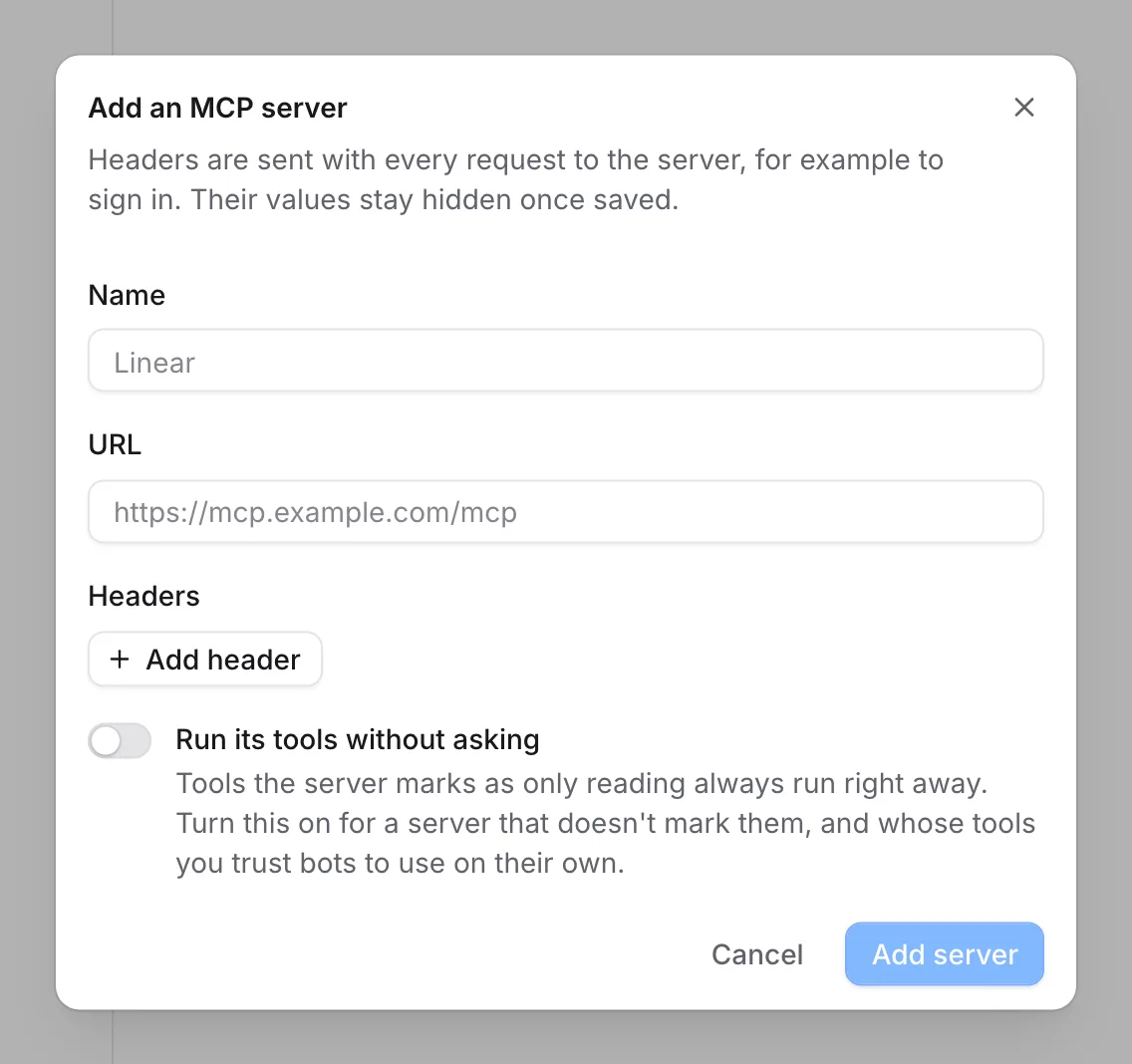 Leave Runs without asking off to approve each tool call
Usage
On Voidhash Cloud, bot responses count toward the AI usage meter under Settings → Team → Billing. Bots can't start new responses once a plan whose AI usage is a hard limit reaches it, until the period ends, or once your spend cap is reached, until you raise it. A plan that bills AI usage past its allowance keeps going up to the cap.
If something's off
- No Bots in the sidebar, or a bot link opens Overview: bots are in early access and not on for your team.
- A bot's request is still waiting: nobody has answered it; someone whose role can make the change has to click Approve. While the team's AI usage is paused, neither Approve nor Decline goes through: Studio shows an error asking you to try again, and the request keeps waiting until usage resumes; see Usage.
- The chat says a change failed for you after you approve: your role can't make it. Ask an admin or the owner to approve it when the bot asks again.
- "This period's AI usage is used up": the plan's AI allowance, or its tracked-revenue limit, is reached. It starts again when the period ends, or upgrade under Settings → Team → Billing.
- "You've reached your spend cap": raise your spend cap.
- "AI isn't included in your current plan": change plans under Settings → Team → Billing.
- An MCP server's tools aren't used: check its URL and headers in Settings → MCP servers; a server that doesn't answer within 15 seconds is skipped.
Next steps
Still stuck? Check Troubleshooting, ask us on Discord, or email support@voidhash.com on a paid plan.
Something wrong or missing on this page? Tell us by email or on Discord.