Alerts
Hear about failures and missing events without watching a chart.
An alert watches your project's events and tells the team's owners and admins, in the Studio inbox and by email, when something looks broken: purchases failing, or an event that stops arriving.
- Open Analytics → Alerts and click Create alert.
- Enter a Name, such as
Purchases failing. - Under Fires when, choose the kind of alert and name the Event to watch.
- Set the Window, the threshold (such as Fires at this many events) and, where offered, People affected, at least.
- Click Create alert.
Alerts read production data only. They're checked every hour at a quarter past, over windows that ended on the hour, in UTC. A project can have 25 alerts. Edit, Turn off, Turn on and Delete are in each alert's menu.
Everyone can read alerts; changing them takes an admin or the owner (see Roles). For Members, Create alert is grayed out, and Edit, Turn off, Turn on and Delete still appear in the menu but end in an error.
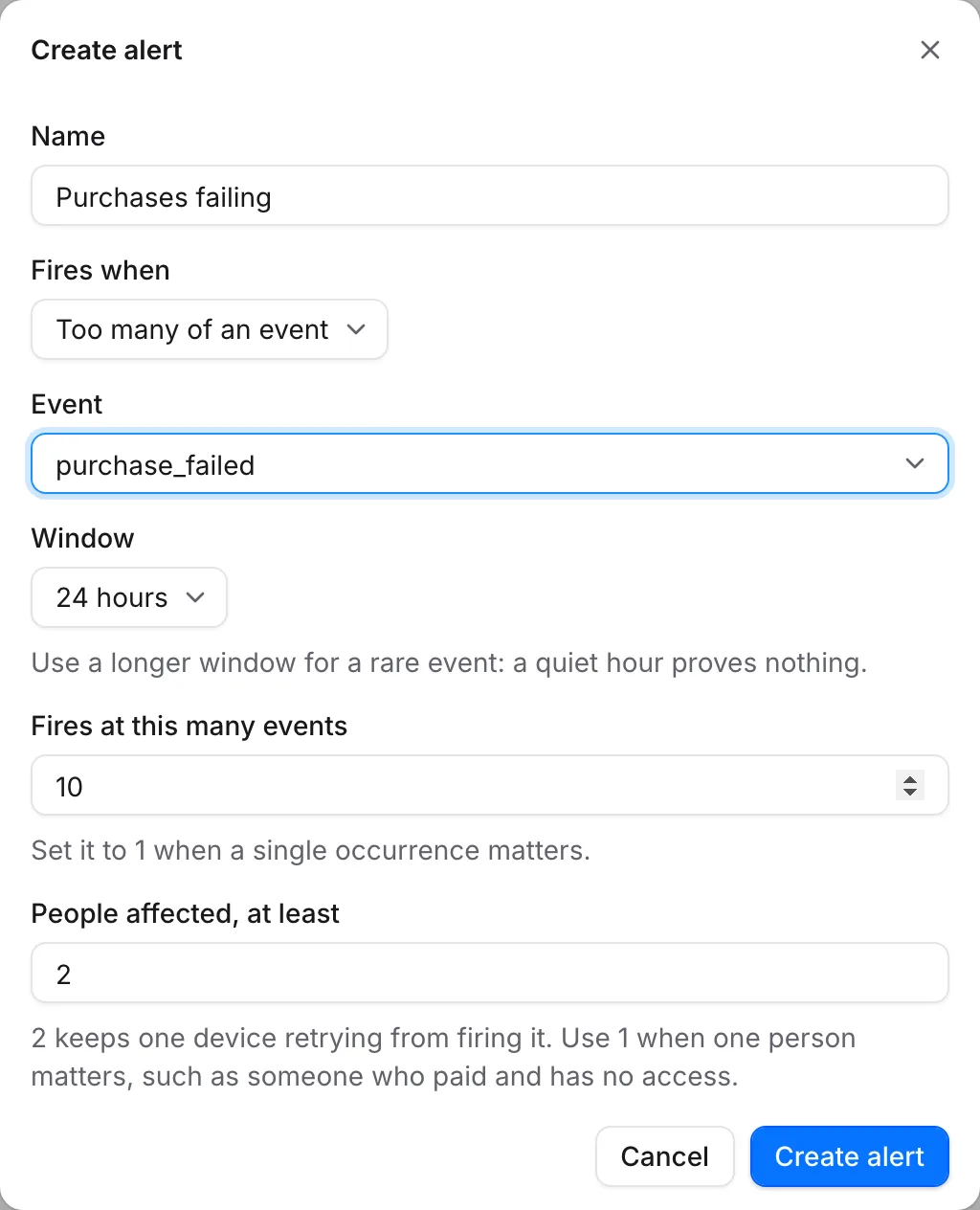 Pick a kind, an event and a limit, then save
Kinds of alert
- Too many of an event: an event happens at least the threshold number of times, to at least
the set number of people. For example,
purchase_failed5 times in an hour. - Too many failures: the share of attempts that failed is clearly above your limit. For
example,
upload_failedagainstupload_completedabove 20%. - An event drops: an event falls by your limit against the same window in the four weeks
before. For example,
$pageviewdown 50% over 24 hours.
Each alert has a Window of 1 hour, 6 hours, 24 hours (the default) or 7 days. Use a longer window for a rare event: a quiet hour proves nothing.
- People affected, at least. For Too many of an event, the events must come from at least this many different people, 2 by default, so one device retrying doesn't fire it. Set it to 1 when a single person matters, such as someone who paid and has no access.
- Failures and successes. For Too many failures, your app needs one event when an attempt fails (Failed event) and another only when it works (Succeeded event). Ask your developers for the exact names. An attempt is either event, so if everything fails the alert reads 100%. It fires only with at least 5 failures, and only when the share is above your limit by more than chance.
- An event drops compares with the median of the same window in the four weeks before, and fires only when the drop is more than chance.
Statuses
| Status | Meaning |
|---|---|
| Not checked yet | New, changed or turned back on; it is checked at the next quarter past the hour. |
| OK | Checked, and nothing is wrong. Shows the latest reading, and for a drop alert what is usual. |
| Firing | The problem is happening. Shows the latest reading, and for a drop alert what is usual. |
| Not enough volume | Too few events in the window to judge, so it stays silent. A failure alert needs 20 attempts, and a drop alert an event that usually happens at least 7 times per window. Choose a longer window. |
| Not enough history | A drop alert needs two earlier weeks of the event to compare with. It starts judging on its own once they exist. |
| Off | Turned off and not checked. |
How often you hear from it
You get one notice when an alert starts firing, not one per hour. It stays firing while the problem lasts, and clears itself after two clean checks and at least six hours since the last problem, so something flapping stays one notice. A check that can't judge leaves a firing alert firing.
Alert notices belong to the Product category in Settings → Team → Notifications. Muting it also mutes product announcements; see Notices.
Changing what an alert watches, or turning it off, starts it over and closes any open notice within the hour. Renaming it doesn't. An alert can only tell you what your events say: a broken release that stops sending events reads as a drop, and an event you never send reads as nothing at all.
If something's off
- The alert never fires: check its status. Not enough volume means the window is too short for how rare the event is; choose a longer one.
- No email arrived: check your Product category in Settings → Team → Notifications, and that you're an admin or the owner.
- It fires for one person retrying: raise People affected, at least.
- Create alert is grayed out for Members, or a change fails: only admins and the owner can create, change or delete alerts. Ask one of them.
For developers: alerts can also be managed from the CLI or the API.
Next steps
- Check your data
- Events (developer docs)
- Notices
Still stuck? Check Troubleshooting, ask us on Discord, or email support@voidhash.com on a paid plan.
Something wrong or missing on this page? Tell us by email or on Discord.