Payment providers
Connect the App Store, Google Play and Stripe in Studio so purchases grant access and count in revenue.
A payment provider is where your customers pay: the App Store, Google Play or Stripe. Connecting one lets Voidhash check each purchase with the provider, keep subscriptions current, grant the perks of the product bought, and count the revenue. You connect providers per project.
Only admins and the owner can open payment providers. Setting one up takes keys from App Store Connect, Google Play Console or the Stripe Dashboard, so whoever manages those accounts may need to help.
Choose a provider
| You sell… | Connect |
|---|---|
| In an iOS, iPadOS or macOS app | App Store |
| In an Android app | Google Play |
| On your website, with Stripe Checkout or Stripe Billing | Stripe |
| Through another payment provider, bank transfers, vouchers or invoices | A payment source (developer docs) |
A project can use all of them at once. Someone who buys on one platform keeps the same perks on the others once your apps sign them in with the same user ID.
Connect a provider
- Open Settings → Payment providers. It lists the stores, Stripe and your payment sources.
- Click Set up next to the provider.
- Fill in each tab. Every field that needs a value from the store has a Where to find? link that opens step-by-step instructions next to the form.
- Click Save changes. Studio asks whether to enable the provider.
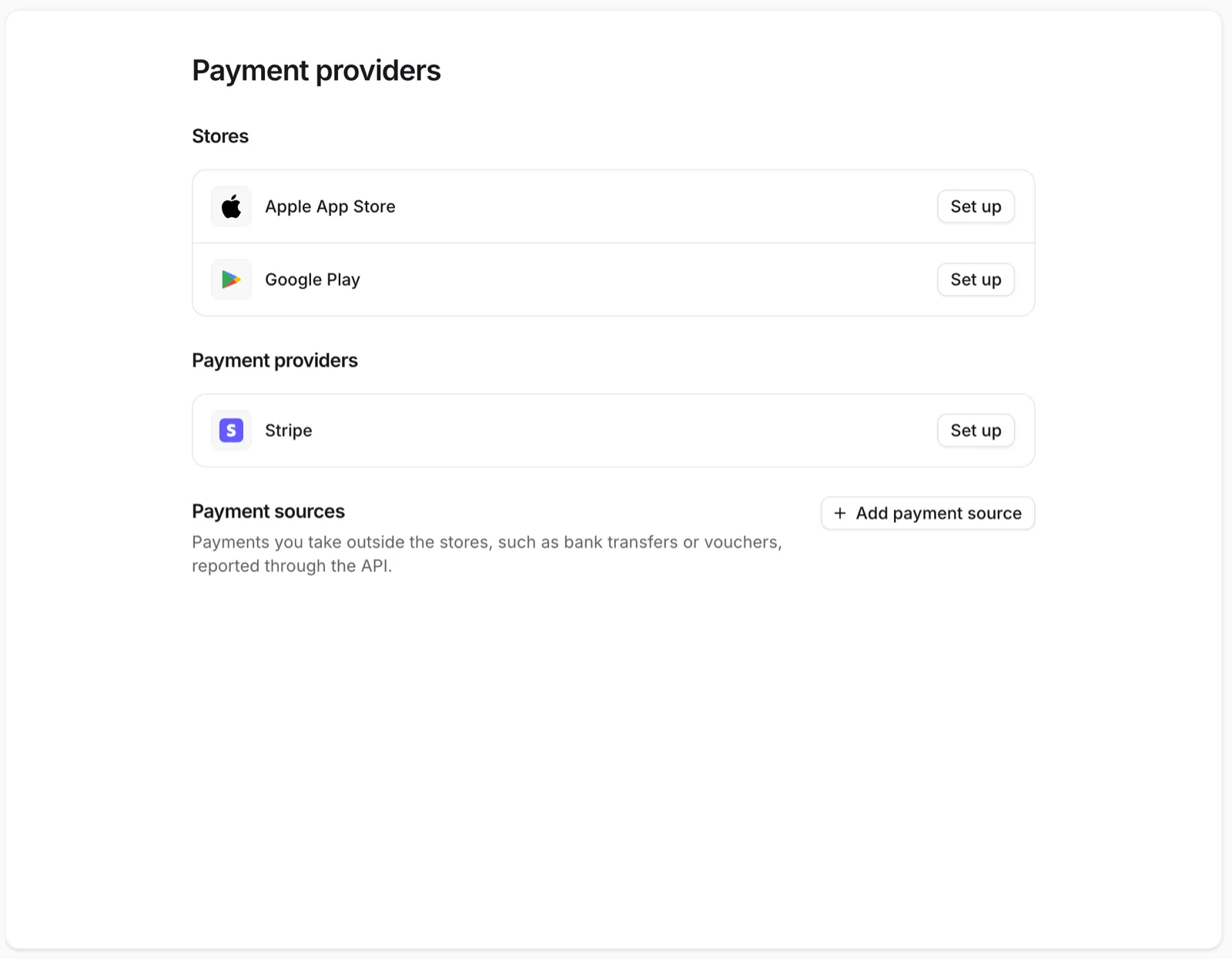
Each provider shows Enabled or Disabled. A disabled provider doesn't process purchases. If you save settings that are no longer complete on an enabled provider, Studio offers to disable it.
After you connect
- Link each store product to the Voidhash product it grants, or import the catalog. See Link store products.
- Make a test purchase. See Test purchases.
- Go live with your production keys. Your developers follow the go-live checklist (developer docs).
Test purchases
Test purchases are free and stay out of your production revenue. Each provider has its own way:
- App Store: sandbox accounts and TestFlight.
- Google Play: license testers and test tracks.
- Stripe: test mode.
- Payment sources: a test secret key (developer docs).
Developers can also buy from a simulated store in debug builds, without connecting a store. See Development mode (developer docs).
See test purchases in Studio
Studio shows one environment at a time. Open the project switcher and choose Production, Sandbox or Test. Purchases and revenue follow the switch:
| Environment | Holds |
|---|---|
| Production | Real purchases. |
| Sandbox | App Store sandbox, TestFlight, App Review and Google Play test purchases. |
| Test | Simulated purchases from debug builds, Stripe test mode and payment source tests. |
By default, App Store and Google Play test purchases also unlock your released app, so App Review can open what it buys. Your developers can turn this off; see Store sandbox in production apps (developer docs).
Next steps
Still stuck? Check Troubleshooting, ask us on Discord, or email support@voidhash.com on a paid plan.
Something wrong or missing on this page? Tell us by email or on Discord.