Connect the App Store
Connect App Store Connect so Voidhash verifies StoreKit purchases and receives subscription updates.
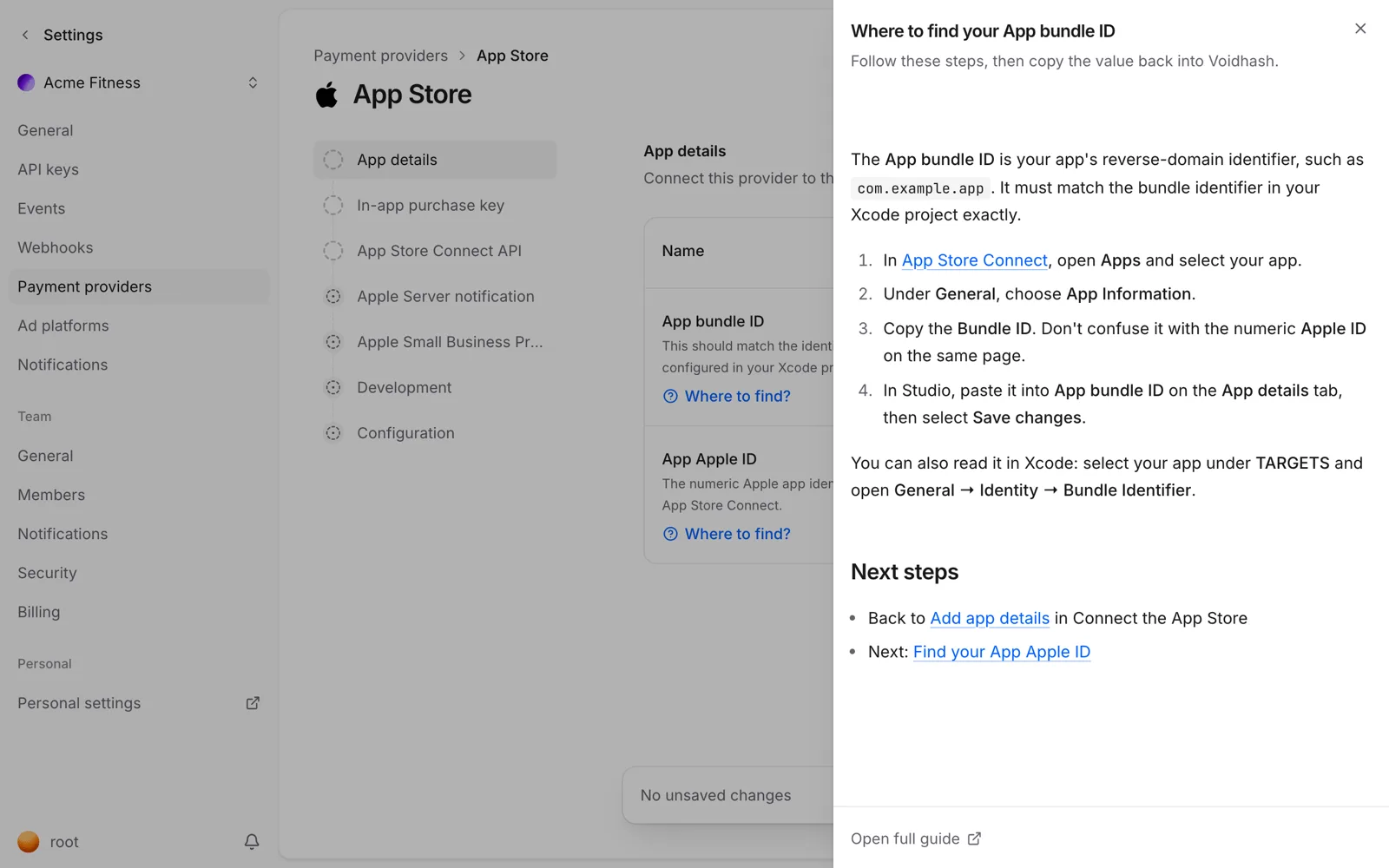
Connecting the App Store lets Voidhash verify StoreKit transactions with Apple, receive App Store Server Notifications for renewals, cancellations and refunds, sign promotional offers, and import your product catalog. Each field below has a Where to find? link in Studio that opens the matching step-by-step guide.
Before you connect
In App Store Connect, check that:
- The Paid Apps Agreement is active, with banking and tax details complete.
- The products you sell exist: subscriptions, one-time purchases or consumables.
- You have the Account Holder or Admin role. Only they can create the keys below; an App Manager can do the other steps.
Configure the provider
Open Settings → Payment providers and click Set up next to Apple App Store. Fill in the tabs in order, then click Save changes. Studio asks whether to enable the provider; it processes purchases only while enabled.
Add app details
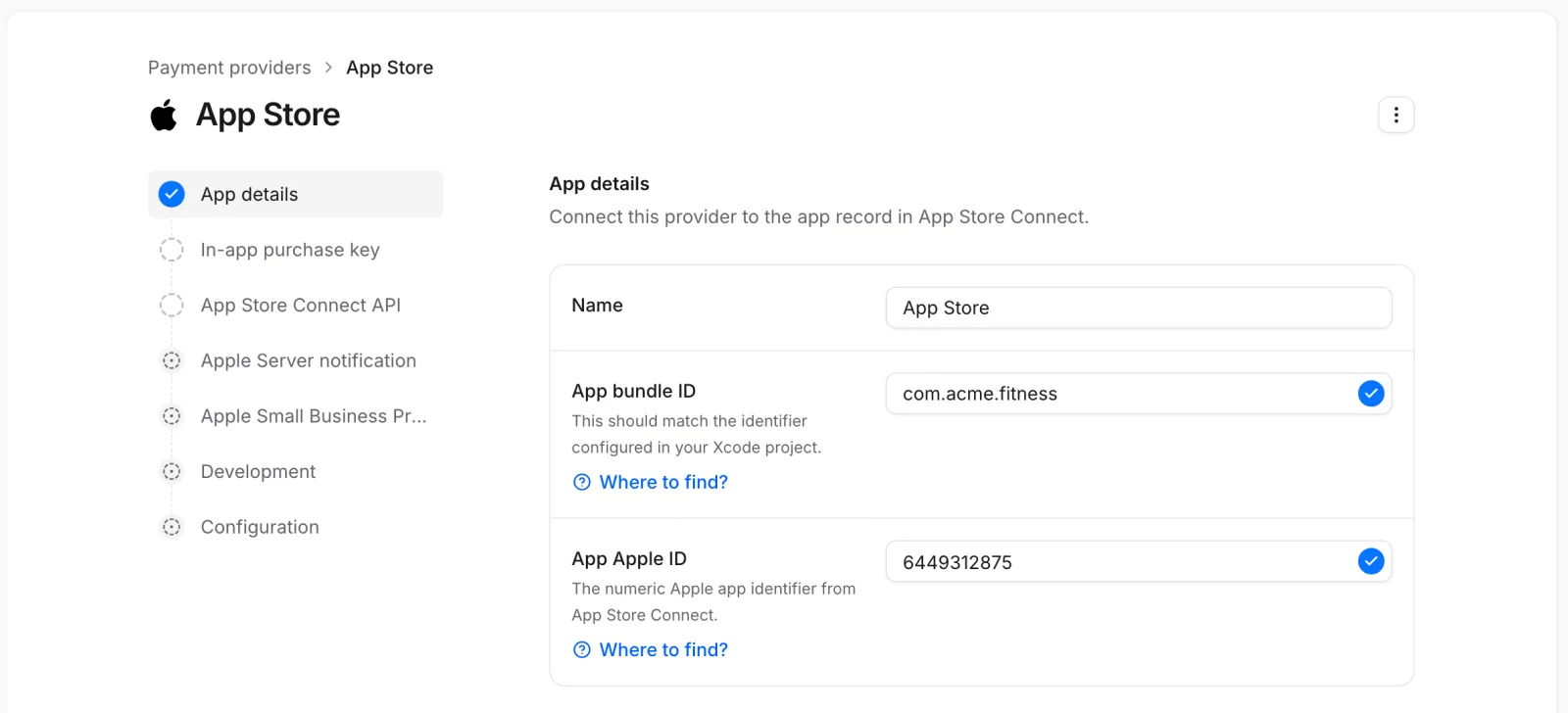
On App details, enter the App bundle ID, which must match the bundle identifier in Xcode, and the numeric App Apple ID.
Add the In-App Purchase key
On In-app purchase key, enter the Issuer ID and Key ID, and upload the .p8 file.
Voidhash uses this key to verify transactions with the App Store Server API and to sign
promotional offers.
Add the App Store Connect API key
On App Store Connect API, enter the team key's Issuer ID and Key ID, upload its .p8
file, and enter your Vendor number. Voidhash uses this key to import your products and keep
their metadata in sync.
Point server notifications at Voidhash
On Apple Server notification, copy the Apple Server Notification URL. In App Store Connect, set it as both the Production Server URL and the Sandbox Server URL, each with Version 2.
Optional settings
| Tab | Setting | Use it when |
|---|---|---|
| Apple Server notification | Apple Server Notification forwarding URL | Your backend needs its own copy of each verified notification. See Forward notifications. |
| Apple Small Business Program | Start date, optional End date | Your account is in the program, so revenue uses the reduced commission. See Small Business Program dates. |
| Development | StoreKit Subscription Offer key, StoreKit testing framework | Optional files from an Xcode StoreKit configuration file; Voidhash stores them but doesn't use them. See Export the offer key and Export the testing certificate. |
| Configuration | Track purchases from Apple Server Notifications | On by default. Turn it off to track only purchases your app reported through the SDK. |
With Track purchases from Apple Server Notifications on, a notification about a purchase Voidhash hasn't seen yet creates it, for example one made in an app version without the SDK. With it off, such notifications wait until the SDK reports the purchase, and are applied then.
Connect products
Open each Voidhash product and add its App Store Product ID under Payment providers, or import the catalog. Product IDs can't be changed in App Store Connect, so copy them exactly. See Link store products.
To sell a promotional offer, add it under Promotional offers on the mapping, with the offer ID your paywalls use and its identifier in App Store Connect.
Non-renewing subscriptions
Apple doesn't record when a non-renewing subscription ends, so Voidhash takes its length from the product you map it to:
- A subscription product with a billing duration. Each purchase grants access for that duration from the moment it was bought. A purchase made while earlier access still runs starts its own period; it doesn't extend the earlier one.
- A one-time or consumable product. The purchase is recorded like any purchase of that kind. A one-time product grants access that doesn't expire.
A refund or revocation from Apple ends the access.
Verify the connection
On Products → Products, click Import products, then Refresh. The App Store's card lists the products Voidhash read with the saved keys, or the error that stopped it. Then make a test purchase.
Test purchases
Sandbox and TestFlight purchases are free and recorded in the Sandbox environment.
- In App Store Connect, create a Sandbox Apple Account under Users and Access → Sandbox.
- On the device, sign in to it under Settings → Developer → Sandbox Apple Account, or install the build from TestFlight, which uses the sandbox automatically.
- Buy in the app, and check that the person holds the product's perk.
- In Studio, choose Sandbox in the project switcher to see the purchase.
Sandbox subscriptions renew on an accelerated schedule, so you can watch renewals and expiry within minutes. To start over, clear the sandbox account's purchase history in App Store Connect. A product missing from the app usually hasn't reached the sandbox yet; new products and price changes can take a while, so wait and retry.
By default, sandbox purchases also unlock access in your App Store build, so App Review can open what it buys. See See test purchases in Studio.
Purchases made against an Xcode StoreKit configuration file aren't sent to Voidhash, because Apple can't verify them. Test in the sandbox, or have developers use development mode (developer docs).
Next steps
- Link store products
- Payment providers
- Make and restore purchases in Swift (developer docs)
Still stuck? Check Troubleshooting, ask us on Discord, or email support@voidhash.com on a paid plan.
Something wrong or missing on this page? Tell us by email or on Discord.