Files and boards
Plan work with your team and bots on shared boards, tasks, comments and an inbox.
Files is a project's shared space for folders and task boards, used by your team and its bots alike. A board holds tasks in columns; each task has a discussion, and your Inbox collects what needs your attention.
Files and boards are in early access. Ask us on Discord, or email support@voidhash.com on a paid plan, to turn them on for your team.
Every team member can read and change Files: the member, admin and owner roles all include it.
Organize files
Open Files in the sidebar, click New and choose Board or Folder. Switch between All files, Recent and Trash, and between a grid and a list.
From an item's menu, choose Rename, Move to… or Move to trash. You can also drag an item onto a folder.
- Your personal folder, Personal, sits at the top. Only you and your Void can see what's in it; nobody else can, not even admins. Moving something out of it shares it with the team, and you can move in only what you created. Tasks in it can't be assigned to others, and mentions there notify nobody.
- A bot's folder belongs to that bot. Only the bot can add, rename, move or remove what's in it, but everyone can work inside its boards. Removing the bot from the project makes it an ordinary folder.
Undo, restore or delete from the trash
Moving to the trash shows Undo for a moment. After that, open Trash: an item's menu has Restore and Delete for good.
The trash keeps items for 30 days, then deletes them. Delete for good, once you confirm, removes the item with everything in it, including tasks and comments. It can't be undone.
Work on a board
A board is a set of columns. Each column's menu has a Means setting (Backlog, To do, In progress, Done or Canceled) that says what its tasks' status is, whatever you name it, and renames, moves or deletes the column. Add columns with Add a column; deleting one asks where its tasks should move.
Click Add a task in a column, type a title and press Enter. Click a task to open it. A task has:
| Field | Values |
|---|---|
| Status | The column it's in. |
| Assignees | People or bots, up to 50. |
| Labels | Up to 50; create new ones as you type. |
| Priority | Urgent, High, Medium, Low or No priority. |
| Due date | Optional. |
| Description | Rich text. Type @ to mention someone or a bot, or add an image or file. |
Filter a board by Assignee, Label and Priority, or search it with Find tasks. Click Archive on a task you're done with; to bring it back, choose Archived tasks from the board's menu and click Restore.
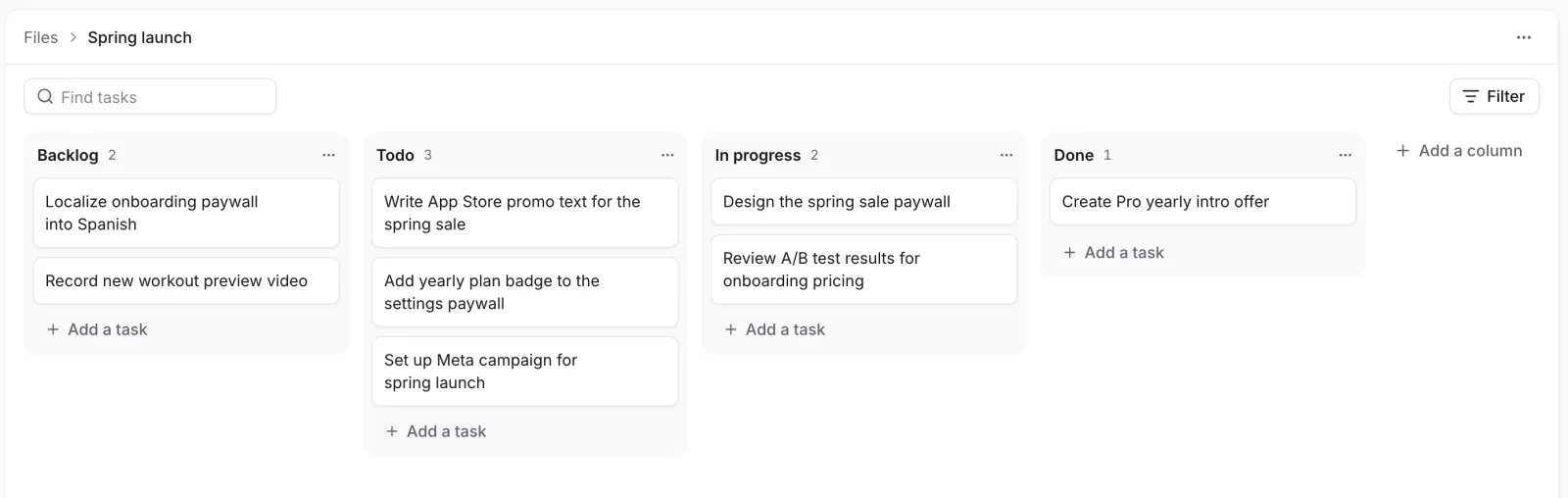 Drag a task between columns to change its status
Discuss a task
Each task has an activity timeline and comments. Replies go one level deep, so a reply to a reply
joins the same thread. You can react with emoji, edit or delete your comments (deleting one deletes
its replies too), mention people and bots with @, and attach up to 10 files per comment.
Attachments can be up to 100 MB: PNG, JPEG, WebP, GIF, MP4, WebM, MOV, PDF, plain text or CSV.
Follow and the Inbox
You follow a task automatically when you create it, are assigned to it, comment on it or are mentioned in it. Use Subscribe or Unsubscribe on a task to change that. Once you unsubscribe, commenting doesn't follow it again; being assigned or mentioned does.
Your Inbox, above Files in the sidebar, collects:
- assignments to you, and being unassigned;
- mentions of you in tasks and comments;
- replies to your comments and reactions to them;
- new comments, moves, priority and due-date changes, archiving and restoring on tasks you follow.
Filter by All, Unread or Archived. Archive an item to clear it; it comes back if something new happens to it, or with Move to inbox. More has Mark all as read.
If something's off
- No Files in the sidebar: files and boards are in early access.
- A teammate can't see an item: it's in your Personal folder. Move it out to share it.
- You can't add to a bot's folder: only the bot can; work inside its boards instead.
AI agents connected through the MCP server can also work with files, boards, tasks, comments and the inbox.
Next steps
Still stuck? Check Troubleshooting, ask us on Discord, or email support@voidhash.com on a paid plan.
Something wrong or missing on this page? Tell us by email or on Discord.