Prices and buttons
Show store prices on a paywall, make its buttons buy, restore and navigate, and highlight the chosen plan.
A paywall shows each plan's price from the store and turns layers into buttons that buy, restore, move between screens or close the paywall. Both are set in the designer's Interaction tab.
Paywalls are in early access. Ask us on Discord, or email support@voidhash.com on a paid plan, to turn them on for your team.
Show products and prices
Prices come from the App Store or Google Play, in each person's currency and format. Never type a price into a paywall.
- Select a screen, or the layer that holds your plans, and open Interaction → Variables.
- Click + (Add variable) and choose Product. Give the variable a Name, such as
plan, and pick the product. Products come from Products; see Set up products and perks. - Write the variable's name in braces inside any text, such as
{plan.price}.
| Placeholder | Shows |
|---|---|
{plan}, {plan.title} | The product's title. |
{plan.price} | The price, formatted by the store. |
{plan.period} | The subscription period. |
{plan.trial} | The free trial. |
{plan.currency} | The currency. |
{plan.id}, {plan.slug} | The product's identifiers. |
Here plan is the variable's name. The designer and the preview show a stand-in price, $9.99.
A misspelled placeholder shows as typed, and the build warns about it. Write {{ and }} when you
need literal braces.
A variable works in the layer that declares it and every layer inside it. Besides Product, variables can be Text, Number or Boolean (True / False), for example to remember which plan a person tapped.
Make buttons work
- Select the layer that should act as a button and open Interaction.
- Click + (Add interaction). The trigger is On click.
- Pick an Action from the table below.
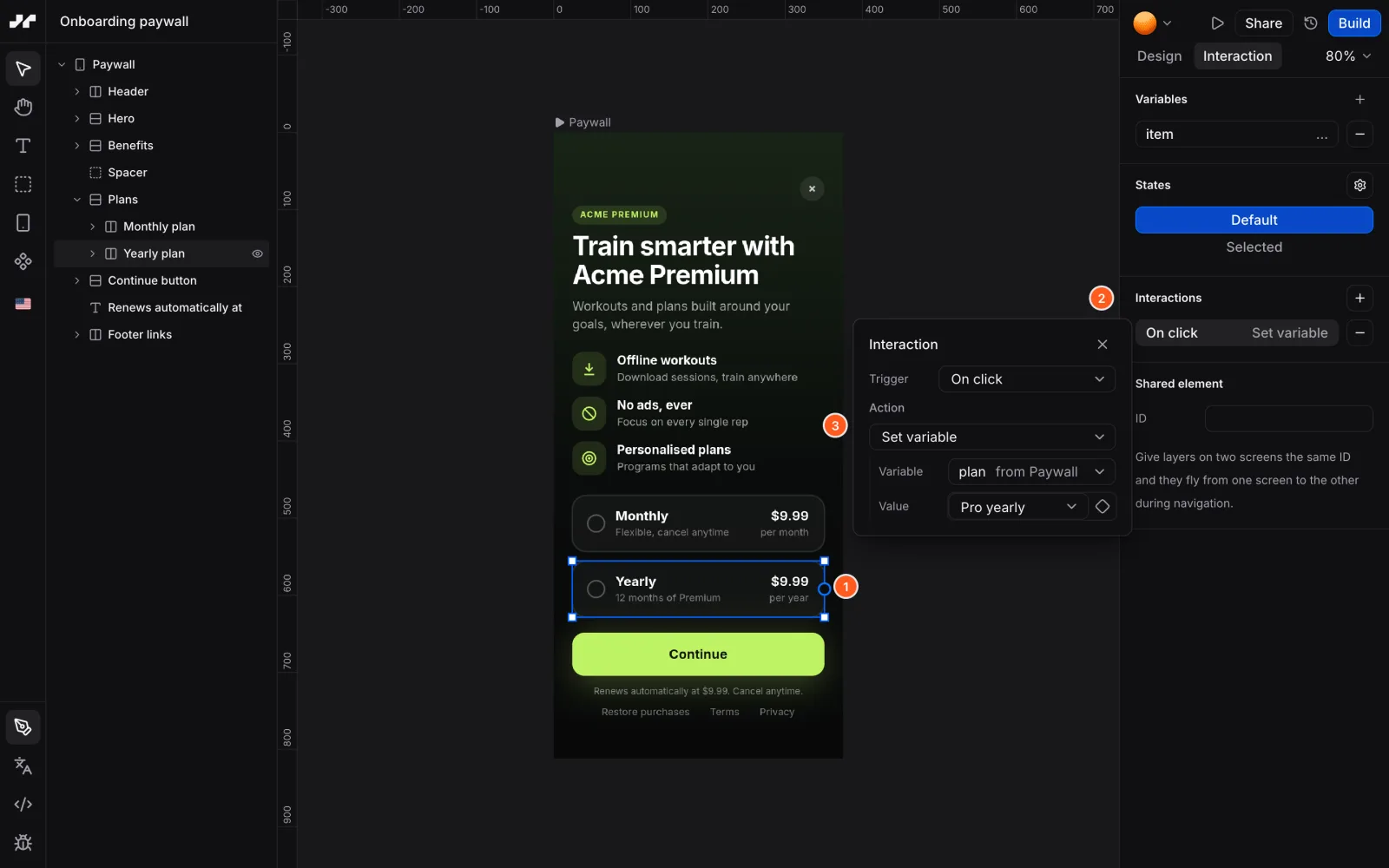 (1) the selected layer · (2) + next to Interactions adds an interaction · (3) the action, here Set variable
| Action | What it does |
|---|---|
| Purchase product | Buys a product, from a product variable or an ID you enter. |
| Restore purchases | Restores the person's earlier purchases. |
| Close paywall | Closes the paywall. Paywalls only. |
| Go to screen | Moves to the Target screen. |
| Go back | Returns to the previous screen. |
| Dismiss | Closes the topmost modal, sheet or dialog. |
| Finish flow | Ends the flow and tells the app how, with the Result name you enter. |
| Set variable | Changes a variable, such as the selected plan. |
| Set user attribute | Saves a value on the person, such as a survey answer. |
| Track event | Records an analytics event. |
| Open URL | Opens a link, such as your terms. |
| Request permission | Asks for Notifications or App tracking permission. |
Set user attribute and Request permission only work when your app allows them, and Open URL works unless your app turns it off. A button whose action isn't allowed does nothing, so ask your developers what your app allows. See What your app allows.
To link screens quickly, open the Interaction tab, select a layer and drag its handle onto a screen. This adds a Go to screen interaction.
A purchase or restore that fails or is canceled keeps the paywall open, so the person can try again.
Ask before people leave
With nothing selected, the Interaction tab shows the Flow section. Set On close to a screen, such as a last offer, to show it the first time a person tries to close the paywall. It shows at most once each time the paywall opens, and never after a purchase or restore.
Highlight the selected plan
A state changes how a layer looks while its conditions hold, for example to outline the plan a person tapped.
- Select the layer and open Interaction → States.
- Click Manage states, then Add state.
- Add conditions under IF ALL OF THESE ARE TRUE. Each compares a variable with equals,
not equals,
>,>=,<or<=. Add another group to match either one (OR). - Select the state and change how the layer looks in it.
A common pattern: a Text variable selected, a Set variable action on each plan card, and
a state on each card that holds when selected equals that card's plan.
If something's off
- The price shows
$9.99everywhere: that's the stand-in price. Real prices appear in your own app; the Voidhash app's preview uses sample prices too. - A placeholder shows as typed: its name doesn't match a variable on this layer or one around it.
- A buy button fails to build: its product no longer exists in Products. Pick another.
Next steps
Still stuck? Check Troubleshooting, ask us on Discord, or email support@voidhash.com on a paid plan.
Something wrong or missing on this page? Tell us by email or on Discord.