Your account
Manage your avatar, the devices and apps signed in as you, AI agents and your Studio theme.
Your Voidhash account is you, across every team you belong to. Manage it in the Personal settings dialog: open Settings and click Personal settings under Personal, or choose Settings from the menu under your name.
Account
Account shows the email you sign in with, which you can't change here, and your Avatar, which you can change or remove.
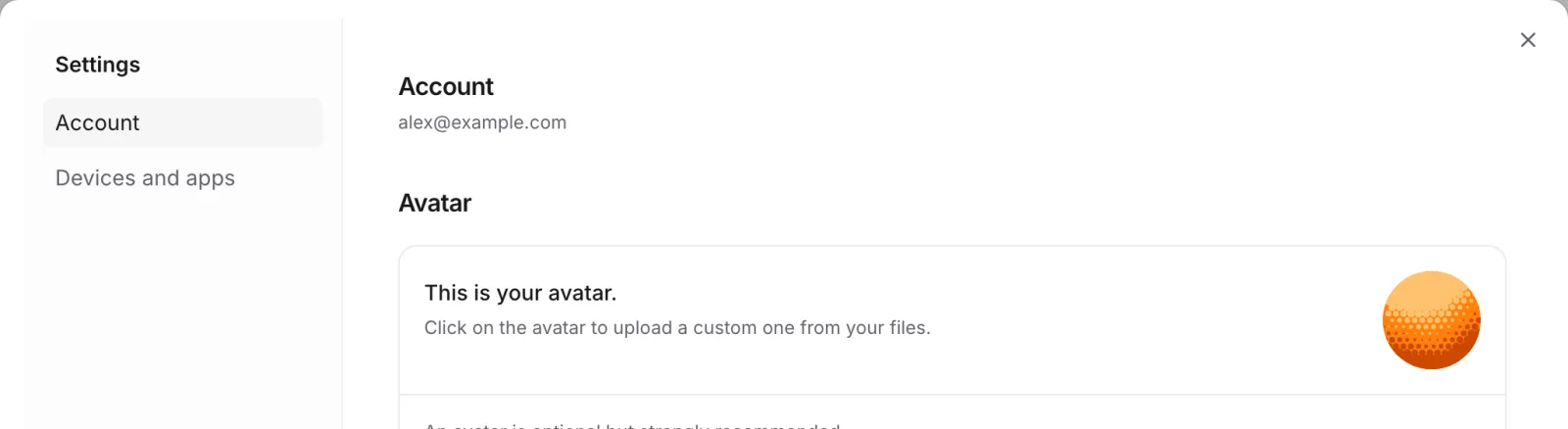 Change your avatar here; your sign-in email stays fixed
Devices and apps
Devices and apps lists everything signed in as you: each Browser, the Mobile app, the CLI and every AI agent connected over MCP. Each row shows when it was last used, and the one you're using is marked This device.
- Read-only, for the CLI and MCP connections, lets that app read but not change anything.
- Disconnect signs that device or app out. On the current browser the button is Sign out.
- Sign out everywhere else signs out every other browser, the mobile app, the CLI and your AI agents. This browser stays signed in.
A browser signs out after 7 days without use, and 30 days after you signed in at the latest. The mobile app, the CLI and AI agents sign out after 90 days without use. Once a sign-out is 30 days away or less, the row says when, so a browser's row always does.
Connected apps act with your role's permissions, except for the few that always need you in Studio. Developers use a project secret key (developer docs) for unattended jobs instead.
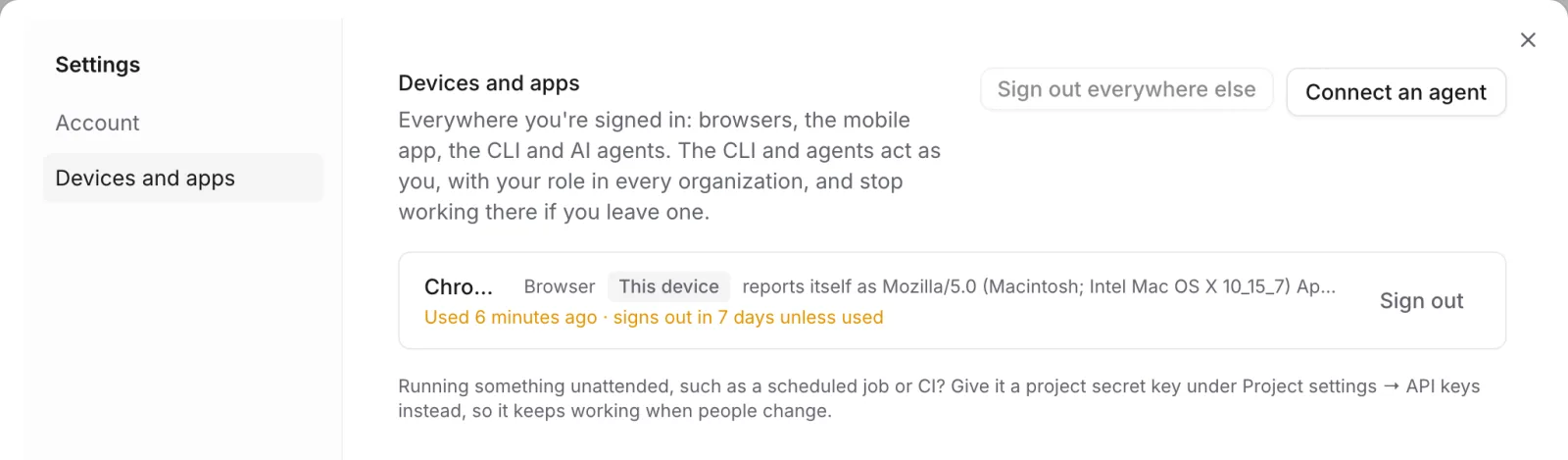 Every signed-in browser and connected app on your account
Connect an AI agent
Click Connect an agent and choose your agent: Claude Code, Cursor, Codex, VS Code, Claude Desktop, or Other for another MCP client. Add Voidhash to the agent, sign in when your browser opens, and run your first prompt. The agent signs in as you, so there's no key to copy. See MCP server (developer docs) for what agents can do.
Theme, feedback and signing out
The menu under your name also has:
- Theme: System, Light or Dark.
- Feedback: pick a topic, write a message, optionally say how you feel, and click Send.
- Log out: signs you out of this browser.
Why you were signed out
If Studio asks you to sign in again, your session in that browser expired for one of these reasons:
- A week unused: a browser signs out after 7 days without use.
- 30 days since you signed in: a browser signs out then at the latest, even if you use it daily.
- From another device: you clicked Sign out everywhere else, or Disconnect on this browser's row.
- Ended where you signed in: Studio checks about once an hour with the service you sign in through. A password reset, signing out there, or an SSO session that ended at your identity provider signs you out within the hour.
Removal through directory sync doesn't sign you out: it takes you out of that team at once, and its projects disappear from Studio.
Sign in again. Your team, projects and settings stay as they were.
Confirm it's you
Studio also asks you to sign in again, under Confirm it's you to continue, before transferring ownership, changing SSO or directory sync, or managing secret keys, if you last signed in more than 30 minutes ago. It then returns you to the page you were on; do what you started again. You may see an error first; that's expected.
If something's off
- A device you don't recognize is listed: click Disconnect on it, or Sign out everywhere else.
- An agent can't change anything: it's connected as Read-only, or your role doesn't allow the change.
Next steps
- Members and roles
- Notices
- MCP server (developer docs)
Still stuck? Check Troubleshooting, ask us on Discord, or email support@voidhash.com on a paid plan.
Something wrong or missing on this page? Tell us by email or on Discord.