Members and roles
Invite people to your team, choose what each role can do and transfer ownership.
A team (an organization in the API) is the account that holds your projects, and its members are the people who can sign in to it. Every member has one role, Member, Admin or Owner, which applies to every project in the team. A person can belong to several teams and switch between them from the project switcher.
Manage members under Settings → Team → Members. On a self-hosted deployment with local sign-in, there is one root account and no other members.
Add a member
Enter an email address and click Add member. If a Voidhash account has verified that address, the person joins at once as a member. Otherwise Studio offers to invite them instead.
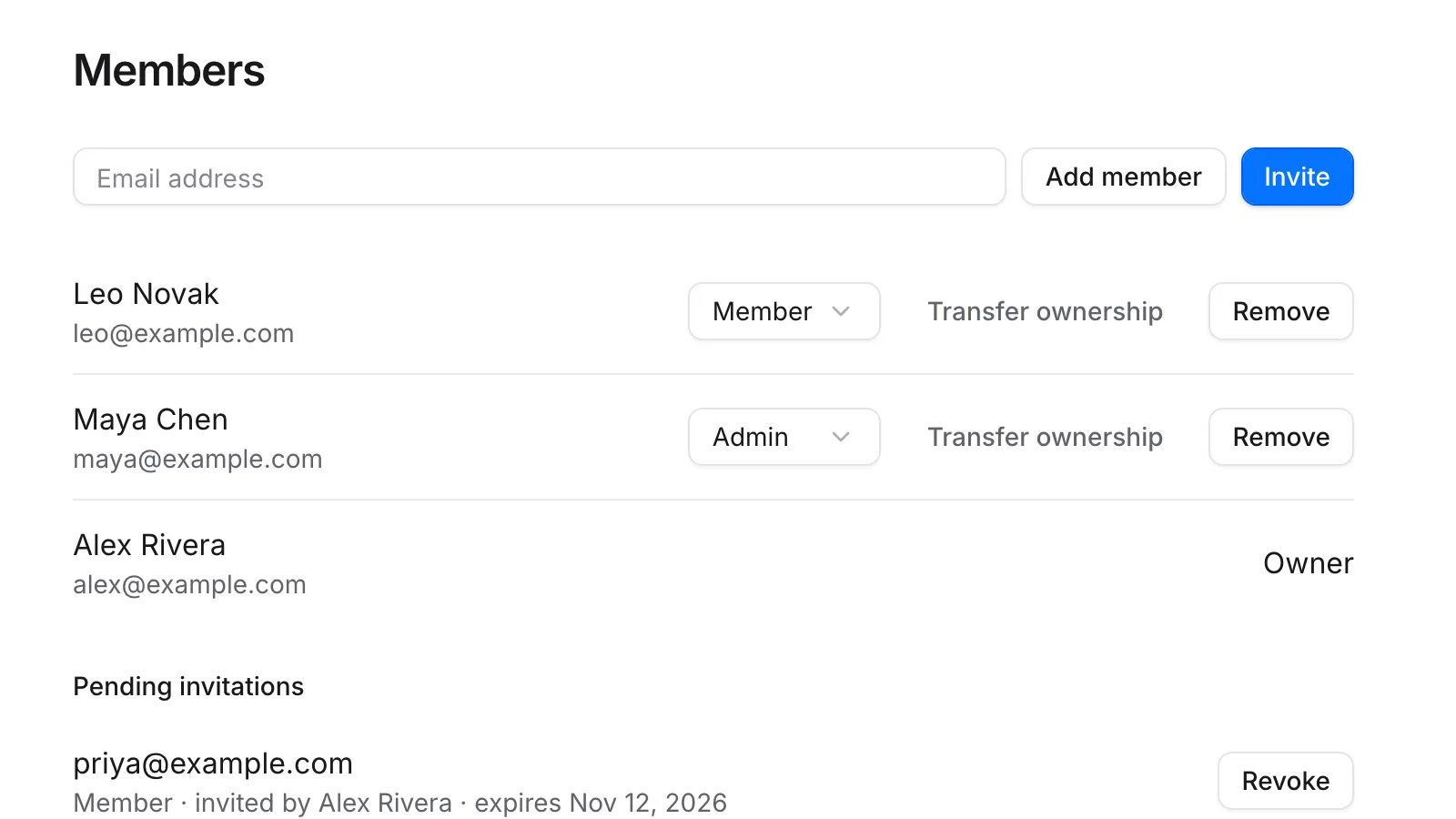 Add member for existing accounts, Invite for everyone else
To invite someone, click Invite, enter their Email, choose a Role and click Send invitation. They get an email with a link to join; someone without a Voidhash account creates one first.
- The invitation is valid for 7 days and only works for the invited address, once verified.
- Studio shows the link once, so you can also send it yourself. It isn't listed again.
- Inviting the same address again replaces the earlier invitation.
- A team can send 50 invitations, and each person 100, in any 24 hours. Replaced and revoked invitations count too.
- An invitation stops working if whoever sent it leaves the team or becomes a Member.
Pending invitations lists open invitations with their expiry date. Revoke stops a link from working.
Change or remove a member
Pick a new role in a member's row, or click Remove and confirm. Only Member and Admin can be assigned, and nobody can change or remove the owner.
You can remove or demote the last admin; the owner still manages the team.
Members added by directory sync show a Directory badge. Their role comes from their directory groups, so change it in your identity provider; they can't be removed here either.
Roles
Admins can do everything Members can, and the owner everything admins can.
Everyone, Members included:
- See the team, its projects and members.
- See people, the catalog, flags, A/B tests, paywalls, automations and most project settings.
- See analytics, revenue, ads and alerts.
- Work on Files and boards; save, change and delete anyone's insights and dashboards; save queries and delete your own.
Admins and the owner, also:
- Change products, perks, flags and people's overrides, A/B tests, paywalls and their locations and components, webhooks, push services, automations, alerts and Settings → Events; build paywalls.
- Delete anyone's saved query or comment.
- Change project settings, including simulated purchases and the tracking domain; change bots and MCP servers.
- Deploy paywalls, activate automations, send push notifications.
- Create people, record, refund and cancel purchases, and delete people's data.
- See and manage payment providers; manage ad accounts and ad settings.
- See and manage API keys (developer docs).
- Read the audit log.
- See and manage Billing.
- Edit team settings, create and delete projects.
- See pending invitations; manage members, roles and invitations.
- Manage SSO and directory sync.
Only the owner: delete the team and transfer ownership.
There are no custom roles.
What Members see
Studio doesn't hide everything a Member can't do:
- Hidden or grayed out: Add project, Add member, Invite, Pending invitations, member roles and Remove, team settings, the project's name, avatar and tracking domain, Delete project, Delete team, Install on components, Create alert, Add in New bot, Delete person data, MCP servers, and ad accounts and ad settings.
- Read-only: the paywall designer and the automation builder open, but you can't edit.
- Shown, then an error: changes to products, perks, flags, A/B tests, paywalls, paywall locations, webhooks, Settings → Events, push services, automations and alerts, and New person, Refund and Cancel. They end in a message such as "Failed to create product".
- Shown, but nothing happens: Create flag in the new flag dialog, Add override on a person, Start, Pause, Resume, Conclude, Archive and Restore on an A/B test, and the Simulated purchases settings.
Ask an admin or the owner to make the change.
Apps act within your role
The CLI and AI agents act with the role of the person who connected them, and bots follow the approval rules there: a change to Voidhash data, or a tool of an MCP server that isn't read-only, waits for someone whose role can make it. Bots change Files and their own routines and instructions without asking. Managing API keys, managing SSO and directory sync, transferring ownership, making someone an admin, accepting an invitation and deleting files for good always need you yourself, signed in to Studio or the mobile app. See Your account.
Transfer ownership
The owner sees Transfer ownership on the row of each member not added by directory sync, and confirms it. The new owner takes over and you become an admin; only the new owner can transfer it back. If you last signed in more than 30 minutes ago, Studio first asks you to confirm it's you, then returns you here; click Transfer ownership again.
If something's off
- The invitation didn't arrive: check spam, then copy the link from Studio when you invite again, and send it yourself. It only works for the invited address.
- You can't change someone's role: they're the owner, or they came from directory sync and get their role from your identity provider.
- A button is grayed out or missing, ends in an error, or does nothing: your role doesn't allow that change. Ask an admin or the owner, or see What Members see.
- An invitation link stopped working: it expired, was replaced or revoked, or whoever sent it can no longer invite. Invite the person again.
- Add member says to invite instead: that address has no verified Voidhash account yet.
For developers: members can also be managed from the CLI.
Next steps
Still stuck? Check Troubleshooting, ask us on Discord, or email support@voidhash.com on a paid plan.
Something wrong or missing on this page? Tell us by email or on Discord.