Get access to Studio
Sign up or sign in, reset your password, accept an invitation and set up your first team.
You reach Studio with a Voidhash account. Joining a team that already uses Voidhash takes an invitation from one of its admins; starting a new team takes a sign-up.
Sign up
- Open the sign-up page. While Voidhash is onboarding teams in batches, it's titled Join the waitlist; otherwise Create your account.
- Enter your Name, Email and a Password of at least 8 characters, with an uppercase letter, a lowercase letter and a number. Or click Continue with GitHub instead.
- Click Continue.
- Enter the 6-digit code from the email Voidhash sends you, and click Verify email. Resend code sends a new one.
You then set up your team; see Set up your team.
Sign in
On the sign-in page, enter your Email and Password and click Continue, or use one of:
- Continue with GitHub, if you signed up with GitHub.
- Sign in with SSO, if your company signs in through its identity provider. Enter your Work email and click Continue with SSO. See SSO and directory sync.
Forgot your password?
- Click Forgot your password? on the sign-in page.
- Enter your Email and click Send reset link.
- Open the link in the email, enter a New password twice and click Reset password.
The link expires after a while. If it says Invalid link, request a new one. Accounts that sign in with GitHub or SSO have no Voidhash password to reset.
Accept an invitation
An admin of your team sends the invitation from Settings → Team → Members. Open the link in the email, sign in or sign up with the same address it was sent to, and click Accept invitation. The team then appears in your project switcher.
The link works for 7 days and only for the invited address. If you see Invitation expired or Invitation not found (the link was replaced or revoked), ask an admin to send a new one. For Sent to another address, sign in with the invited address.
Set up your team
Someone signing up without an invitation goes through three steps:
- Create your team: enter the Team name, usually your company's, and click Continue.
- Set up your first project: enter the Project name, usually your app's name, and pick its platforms. Click Continue.
- Invite your team: enter colleagues' Email addresses, give each a role (Member or Admin) and click Send invites and continue. Add another adds a row, and Skip for now skips the step. You can invite people later; see Members and roles.
If you joined a team as a Member and it has no project yet, Studio shows Waiting for the first project until an admin creates one.
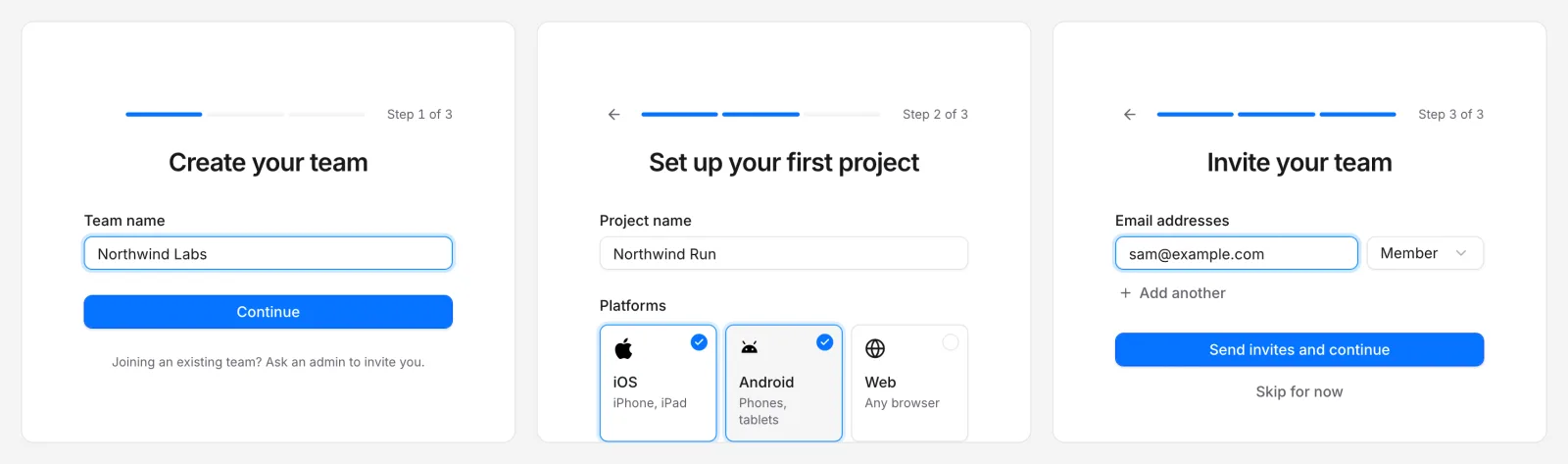 A new team takes three steps: team, project, people
The waitlist
On Voidhash Cloud, new teams may start on the waitlist. After setup, Studio shows You're on the list instead of your project. It means:
- Your account and team are set up and kept. There's nothing else to do.
- Voidhash lets teams in by batch and emails you when it's your turn. Studio then opens as usual.
- People you invited join the same waitlisted team.
To ask about your place, write to us on Discord. If you signed in with the wrong account, click Log out on the waitlist screen. Self-hosted Studio has no waitlist.
Self-hosted Studio
A self-hosted Studio with local sign-in has one root account, set up by whoever runs the server. Ask them for the credentials; there's no sign-up or invitation.
If something's off
- No verification email: check spam, then click Resend code.
- "This account cannot sign in this way": your email already belongs to a Voidhash account that signs in another way, for example with a password rather than GitHub, or the account is suspended. Sign in the way you first did; if that fails, ask us.
- Signed in, but your team is missing: if your team requires SSO, sign out and click Sign in with SSO.
- "Too many attempts": wait a few minutes and try again.
- Stuck on You're on the list: your team is still waiting; see The waitlist.
See also Troubleshooting.
Next steps
Still stuck? Check Troubleshooting, ask us on Discord, or email support@voidhash.com on a paid plan.
Something wrong or missing on this page? Tell us by email or on Discord.