Paywall components
What custom components are, where they come from, and how to install and update them for your paywalls.
A component is a ready-made building block you drop into a paywall, such as a plan picker, a countdown or a scratch card. It looks and behaves the way a developer built it, and you set its options in the designer, like any other layer. Developers write components; designers find, install and use them.
Paywalls are in early access. Ask us on Discord, or email support@voidhash.com on a paid plan, to turn them on for your team.
Where components come from
Open Paywalls → Components. It has three tabs:
| Tab | Shows |
|---|---|
| Project | Components written for this project only. |
| Installed | Components from your team that this project installed. Only these and the project's own components can go into its paywalls. |
| Organization | Every component your team has published, ready to install in any project. |
Search with Search components. On the Organization tab, click a component for its details: its versions, what each Can do, and how many projects and paywalls use each.
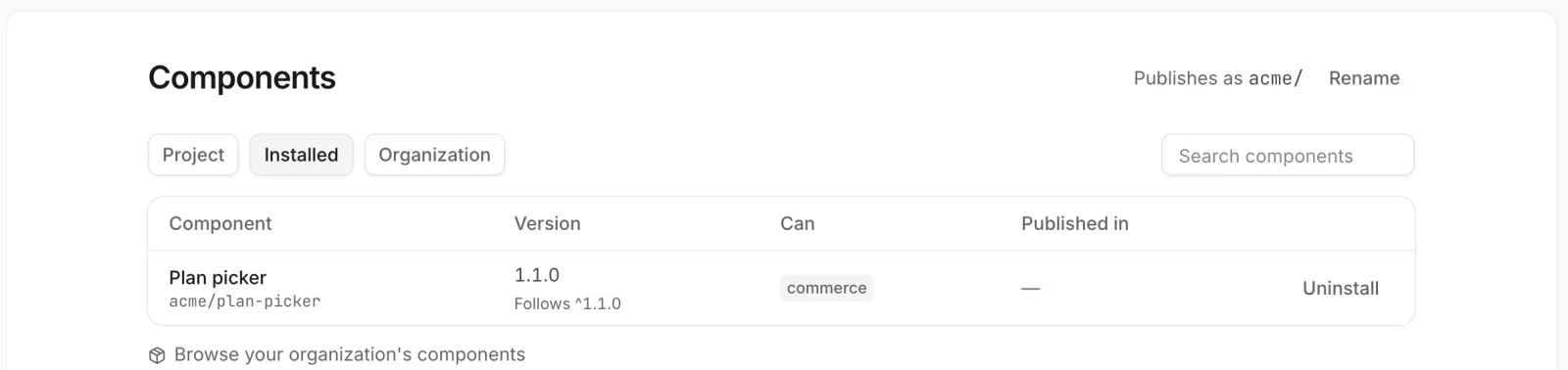 Components installed in this project
Install a component
- On the Organization tab, click Install next to the component.
- Review what it Can do, such as Start purchases, Open links or Record analytics events. A component can do only what it lists.
- If it asks for anything, tick the box to allow it. Click Install.
It appears on the Installed tab and in the designer. To use it in a paywall, open the designer and click All components in the rail, or press ⌘J. See Design a paywall.
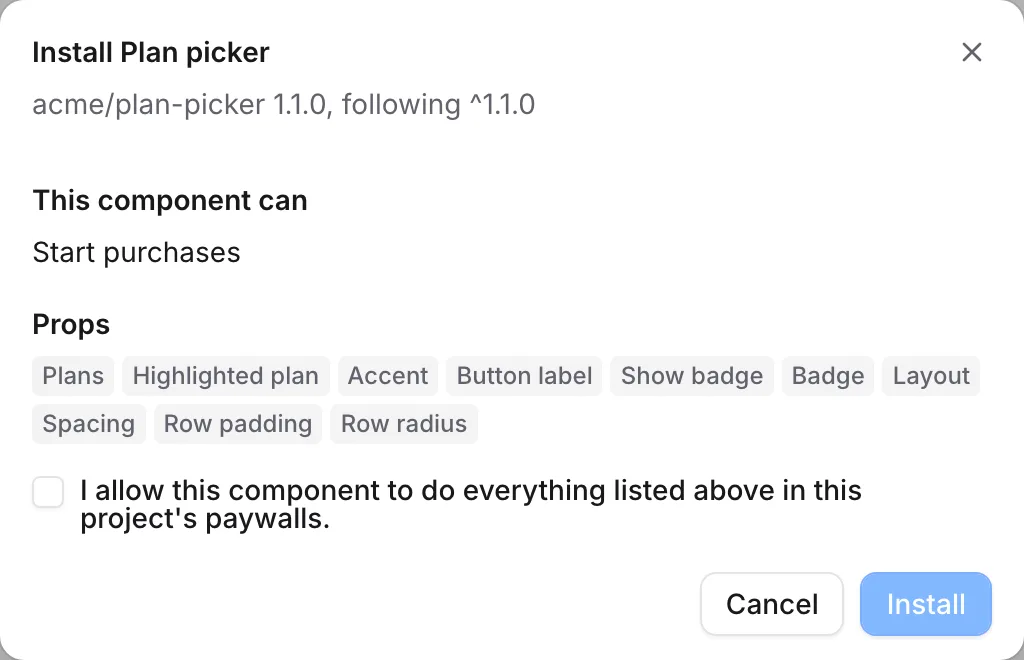 Check what a component asks for before you install it
Update or uninstall
When a newer version is out, the Installed tab shows Review update to and the version. The review lists what changed, such as new options or new things it asks to do; accept the changes if asked, and click Update.
Paywalls that already use the component keep their version. To move one to the new version, select the component in the designer, click Update to v… in its Component section, then build and deploy the paywall.
Uninstall removes a component from the project; confirm with Uninstall component. Paywalls that are already live keep working, but a paywall that uses it can't be built and deployed again until you remove the component from it or install it again.
Deprecated and yanked versions
The team that owns a component can mark a version Deprecated (replace it soon; the deprecation can be lifted) or Yanked (withdrawn for good). Neither can be newly installed or added to a paywall. Paywalls already live keep working, but a new build that uses either fails and names it, and deploying an older build that uses it stops with only "The build could not be deployed".
A component's details, opened from the Organization tab, list each version with Deprecated or Yanked next to the ones withdrawn. The Installed tab shows only the version your project installed, so a paywall still on an older version may use a withdrawn one that isn't flagged there. Your project's own components show v… deprecated on the Project tab. Ask your developers for a current version, then update.
Publish a project component
People who can publish paywalls can share a project component with the whole team: in its menu on the Project tab, choose Publish v… to organization. Your team first needs a namespace, claimed with Claim namespace. Writing components themselves is developer work; see Components (developer docs).
If something's off
- The component isn't in the designer: install it from the Organization tab first.
- No Install button: installing needs permission to change paywalls, which admins and the owner have. See Roles.
- A build fails on a component, or a deploy stops with "The build could not be deployed": a version it uses is deprecated or yanked, or the component was uninstalled. Look in the component's details on the Organization tab, or on the Project tab for your own components. See Deprecated and yanked versions.
- A paywall still uses the old version after an update: click Update to v… on the component in the designer, then build and deploy.
Next steps
- Design a paywall
- Build and deploy
- Components (developer docs)
Still stuck? Check Troubleshooting, ask us on Discord, or email support@voidhash.com on a paid plan.
Something wrong or missing on this page? Tell us by email or on Discord.