Build and deploy
Turn a paywall design into a build, make it live, roll back, and know when people see the change.
A build is a frozen copy of a paywall's design, ready for apps. Deploying a build makes it the paywall's live build: the one people see wherever the paywall is placed. Editing the design changes nothing in apps until you deploy.
Paywalls are in early access. Ask us on Discord, or email support@voidhash.com on a paid plan, to turn them on for your team.
Editing the design changes nothing in apps until you deploy. A deploy or rollback switches every location showing the paywall at once.
Build a paywall
In the designer, click Build. Studio saves your pending edits, opens Builds and builds exactly that version. If someone else edits the paywall at that moment, the build is refused; review their changes and build again. New build in the Builds dialog does the same. Building and deploying need an admin or the owner.
If a component in the paywall pins no published version, or shows a developer's local build that isn't published yet, Build first opens This paywall can't be built yet. Builds carry only published component versions, so the dialog lists each such component with its fix: a button that updates it to a published version, or a step for your developers. Once nothing is listed, click Build in the dialog.
Builds (the history icon next to Build) lists each build as Build #N, newest first, with who made it and its status:
| Status | Meaning |
|---|---|
| Building | Voidhash is preparing the build. |
| Ready | The build can be tried on a device and deployed. |
| Failed | The build has problems, listed under it. Fix them and build again. |
A build fails when the design uses a product that no longer exists or an offer no store lists, or a component version that isn't installed, is deprecated or yanked, or failed its checks. Warnings, such as a large font or a misspelled placeholder, don't stop a build. The list keeps each paywall's latest 50 builds.
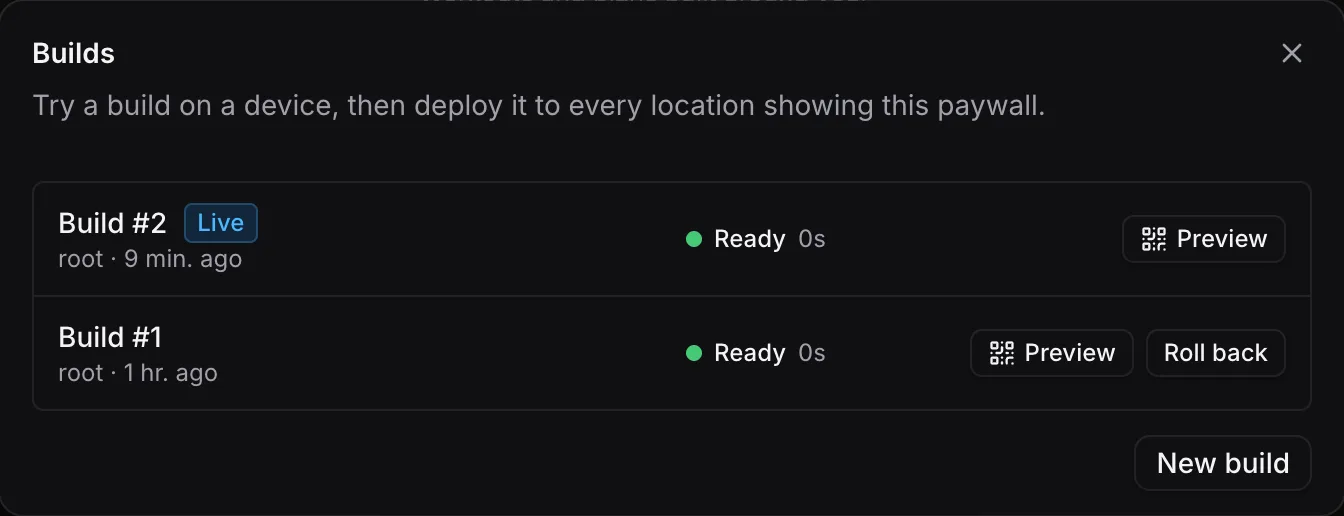 Roll back to an earlier build from the Builds dialog
Try a build on a device
Every ready build has Preview, which shows a QR code. Scan it with the Voidhash app, signed in to your team, to run that build on a phone before anyone else sees it:
- Purchases are simulated, and prices are sample prices, not your store's.
- Nothing is deployed and no location changes.
The Voidhash app for iPhone and Android isn't in the App Store or Google Play yet. Ask us on
Discord, or email support@voidhash.com
on a paid plan, if your team needs it. Without it, check changes in the
designer's preview, or ask your developers for a test build of
your app with a location only your team opens, such as qa, and deploy there first. A phone's
camera app opens the paywall's page in Studio instead of the preview.
Deploy a build
- Open Builds.
- Click Deploy on a ready build.
- Confirm with Deploy build.
Studio shows Build #N is live, and the build is marked Live. Every location showing the paywall switches to it right away.
A paywall has one live build, shared by every environment: production, sandbox and test apps all receive it.
A deploy changes what people see at every location that shows the paywall, including the variants of running A/B tests. Try it first.
A deploy also checks components again. If a component version was deprecated or yanked, or the component uninstalled, after the build, the deploy stops with "The build could not be deployed", without naming the component. To find it, open Paywalls → Components and, on the Organization tab, click each component the paywall uses: its details list every version, with Deprecated or Yanked next to the ones withdrawn. The Installed tab shows only the version your project installed, which may be newer than the one in the build. Your project's own components show v… deprecated on the Project tab. Ask your developers for a current version, then build again.
Roll back
Builds older than the live one show Roll back instead of Deploy. To go back to an earlier design:
- Open Builds and click Roll back on the older build.
- Confirm with Deploy build in Roll back to build #N?.
The older build becomes Live and every location showing the paywall switches to it right away. A rollback reaches apps like any deploy. Your current design stays in the designer, so the next build includes your latest edits again.
What running apps see
People don't see a change the instant you deploy. Apps reuse a paywall they loaded in the last hour without asking again. Once their copy is older, they fetch the new one in the background, and show the old copy if the paywall opens before that finishes. So a deploy, a new placement or an ended placement reaches most people within about an hour. A paywall someone already has open stays as it was until it opens again.
- Apps keep the paywalls they've loaded for up to 7 days, so those work offline.
- A person on an old app version that can't show the new build sees your app's own fallback screen instead of a broken paywall. Updating the app fixes it.
For developers: the exact timing is on the SDK pages for Swift, Kotlin and React Native.
If something's off
- The build failed: read the problems listed under it. Most often a product was deleted; pick another in Interaction → Variables.
- "The build could not be started" or "could not be deployed": building and deploying need an admin or the owner. If you are one, someone may have edited the paywall at that moment; try again. A deploy can also stop on a component that was deprecated, yanked or uninstalled after the build; see the components check under Deploy a build.
- The app still shows the old design: wait an hour, then open the paywall again. The first opening after that can still show the old design while the new one loads.
- Preview doesn't open the paywall: scan with the Voidhash app, not the phone's camera.
- Some people see nothing: their app version is too old for the build, or the location has no placement. See Troubleshooting.
Next steps
Still stuck? Check Troubleshooting, ask us on Discord, or email support@voidhash.com on a paid plan.
Something wrong or missing on this page? Tell us by email or on Discord.