Connect Google Play
Connect the Google Play Developer API so Voidhash verifies purchases and keeps subscriptions current.
Connecting Google Play lets Voidhash verify purchases with the Google Play Developer API, receive real-time developer notifications (RTDN) for renewals, cancellations and refunds, and import your product catalog. Voidhash reaches Google through a service account you create. Each field has a Where to find? link in Studio that opens the matching step-by-step guide.
Before you connect
- Your app exists in Play Console, with the products you sell: subscriptions with base plans, or one-time products.
- You can create a service account and Pub/Sub resources in a Google Cloud project, and invite users in Play Console.
Configure the provider
Open Settings → Payment providers and click Set up next to Google Play.
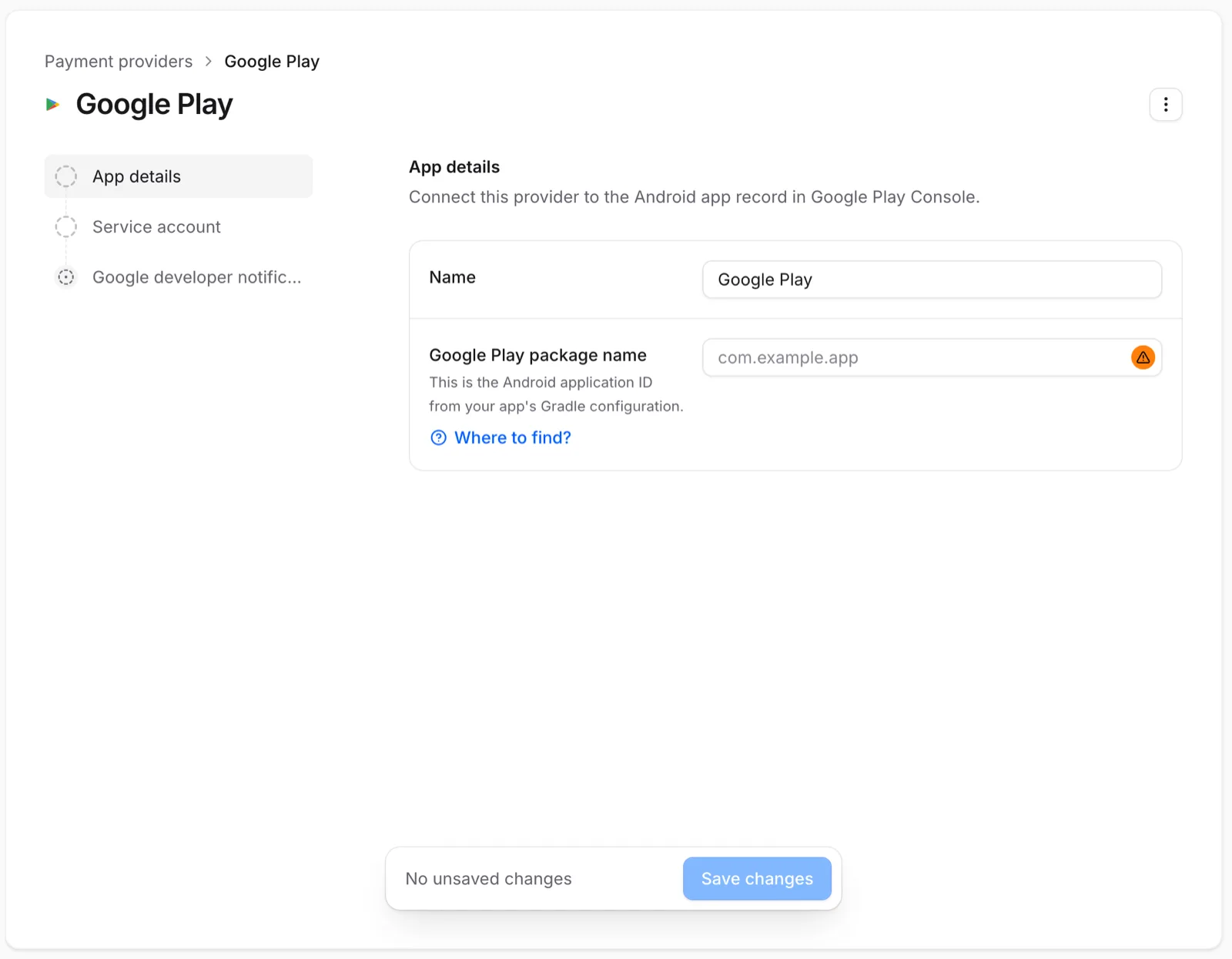
Add the package name
On App details, enter the Google Play package name: the applicationId of your release
build, such as com.example.app.
Add a service account key
Enable the Google Play Android Developer API in a Google Cloud project, and create a service account with a JSON key. In Play Console, invite the service account and grant it:
- View financial data, orders, and cancellation survey responses
- Manage orders and subscriptions
On Service account, upload the JSON file as the Service account key file. Then click Save changes and enable the provider when Studio asks.
Set up real-time developer notifications
Google publishes RTDN to a Pub/Sub topic you own, and a push subscription delivers them to Voidhash. Without them, Voidhash learns about renewals and cancellations only when your app runs.
- Create a Pub/Sub topic and let
google-play-developer-notifications@system.gserviceaccount.compublish to it. - In Play Console, enable real-time notifications for the topic, for subscriptions and one-time products.
- On Google developer notifications, copy the RTDN push endpoint URL.
- Create a push subscription on the topic that delivers to that URL, authenticated as the service account whose key you uploaded, with the audience left empty.
- Click Send Test Message in Play Console.
The Google developer notifications tab also has two optional fields. Google Play RTDN topic name keeps the topic name for your reference. Raw Google events forwarding URL sends your backend a copy of each notification; see Forward notifications.
Connect products
Open each Voidhash product and add its Google Play mapping under Payment providers, or import the catalog, which lists each base plan separately:
- Product ID: the subscription or one-time product ID in Play Console.
- Base plan ID: the subscription's base plan your app sells.
- Offers: developer offers on that base plan your paywalls can sell. Offers need a base plan ID.
See Link store products.
Verify the connection
On Products → Products, click Import products, then Refresh. The Google Play card lists the products Voidhash read with the saved key, or the error that stopped it. Then make a test purchase.
Test purchases
Purchases by license testers are free and recorded in the Sandbox environment.
- In Play Console, add your Google accounts as license testers under Settings → License testing, and as testers of an internal test track.
- Upload the app to that track and install it from Google Play.
- Buy with a test payment method, and check that the person holds the product's perk.
- In Studio, choose Sandbox in the project switcher to see the purchase.
Test subscriptions renew on an accelerated schedule.
Play Billing depends on the installed package, its signing key, the tester account and the track. A sideloaded build isn't a reliable test.
By default, test purchases also unlock access in your production app, on any track. See See test purchases in Studio.
Next steps
- Link store products
- Payment providers
- Make and restore purchases in Kotlin (developer docs)
Still stuck? Check Troubleshooting, ask us on Discord, or email support@voidhash.com on a paid plan.
Something wrong or missing on this page? Tell us by email or on Discord.